
Selling in your shop (point of sale)
Ring up in-store sales with the same products and stock as your online store, with barcodes, discounts, change due, thermal receipts and returns.
Open this page in your dashboardFrom the menu, open POS → Point of sale. The first time each day, enter the cash in the drawer and click Open shift, then start selling.

- Search by name, barcode or SKU. A barcode scanner types the number and presses Enter for you, so the item is added right away.
- Click an item to add it to the sale. Change the quantity with − and +, or click the price to change it for this sale only.
- Choose how the customer pays (Cash, Card or Wallet). For cash, enter the amount received or pick a quick amount to see the Change, then click Charge.
After the sale
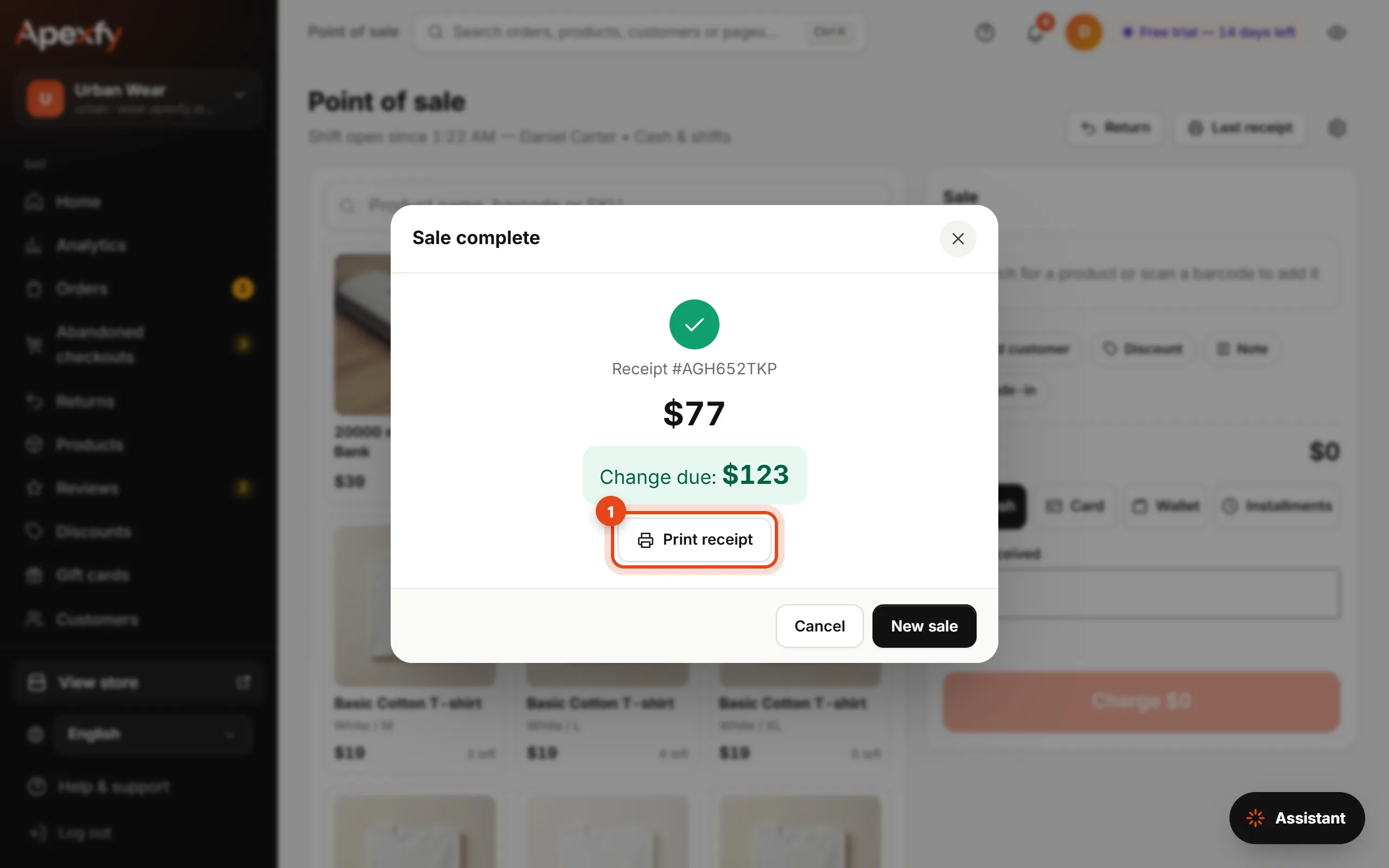
- Sale complete shows the receipt number and the change due, with a Print receipt button.
- Stock goes down right away, and the sale shows up in Orders and in Analytics under the "In-store (POS)" source.
- Add a customer with a phone number to save them in Customers with the rest of your customers.
Receipts and thermal printers
Click the gear button at the top of the page and pick a paper size: Thermal 58 mm, Thermal 80 mm or A4 / Letter. You can also turn on Print the receipt automatically after each sale.
Sales on hold
Customer still deciding? Click Hold and start a new sale. Pick it back up from the On hold button at the top of the page.
Returns
Click Return, enter the receipt number (it's printed on the receipt), choose how many of each item come back, then click Confirm return.
- The refund goes back the same way the customer paid, minus the item's share of any discount on the sale.
- Items go back into stock, unless you uncheck Put the items back in stock because the item is damaged.
If the internet drops
Keep selling. The sale is saved on the device, a Waiting button shows at the top, and it's sent automatically when the connection returns, never twice. You can print a temporary receipt, and search uses the last product list that was loaded.
Tax
Counter prices include tax. If you set a rate for your store's country under Settings → Tax by country or state, the tax portion is recorded on every sale automatically (the total doesn't change), so it shows on the order page, in reports and in exports. See Store settings.