
Store settings
Contact details, cash on delivery, return window, countries, currency, languages and tax, customer emails and accounts, and your store policies.
Open this page in your dashboardAll of these live on the Settings page. After any change, click Save at the top of the page.

Store details
| Field | Why it matters |
|---|---|
| Store name | Shows at the top of your store and in emails and invoices |
| Store WhatsApp | The WhatsApp button in your store and confirmation messages. Include the country code (like +1…) |
| Other phone and Email | Shown on your contact page; replies to customer emails go to this address |
| Accept cash on delivery orders | Uncheck it if you only take online payments (Payments) |
| Return window | How many days after delivery customers can request a return from their account (Returns) |
| Weight unit | kg, g, lb or oz, for product weights. Stores in the United States start with lb |
Markets & languages

- Store base country and Store currency: all your prices are in this currency. Changing it doesn't convert prices, so review your product prices afterwards. Currencies with three decimals (like the Kuwaiti dinar or Omani rial) keep all three, such as 4.125.
- Countries you ship to: every country in the world is available, with yours and its neighbors first. Pick at least one. Shoppers in other countries see prices roughly converted to their currency; set shipping rates per country under Shipping.
- Store languages: up to 10, and shoppers can switch between them. Pick a Default language, then translate products from each product page (Product details). The store’s own text (buttons, cart, checkout) is ready in Arabic, English, French, Spanish, German, Portuguese and Turkish; any other language shows it in English.
- Tax: your rate, how it's charged, and rates by country or state — see Taxes below.
Taxes
- Under Markets & languages, enter the Tax rate for your store's country (or 0 if you don't charge tax).
- Choose Prices include tax:
- On (common in the EU, the Gulf and Egypt): the price customers see is final. The total doesn't change, and checkout and invoices show "Includes tax".
- Off (common in the US and Canada): tax is added to the total at checkout, on its own line. US and Canadian stores start with this off.
- For a different rate in a country or state, click Add a rate under Tax by country or state: pick the country, then a state or Whole country, enter the rate, and a tax name if you like (such as "Sales tax"). Turn on Charge tax on shipping too where shipping is taxable.
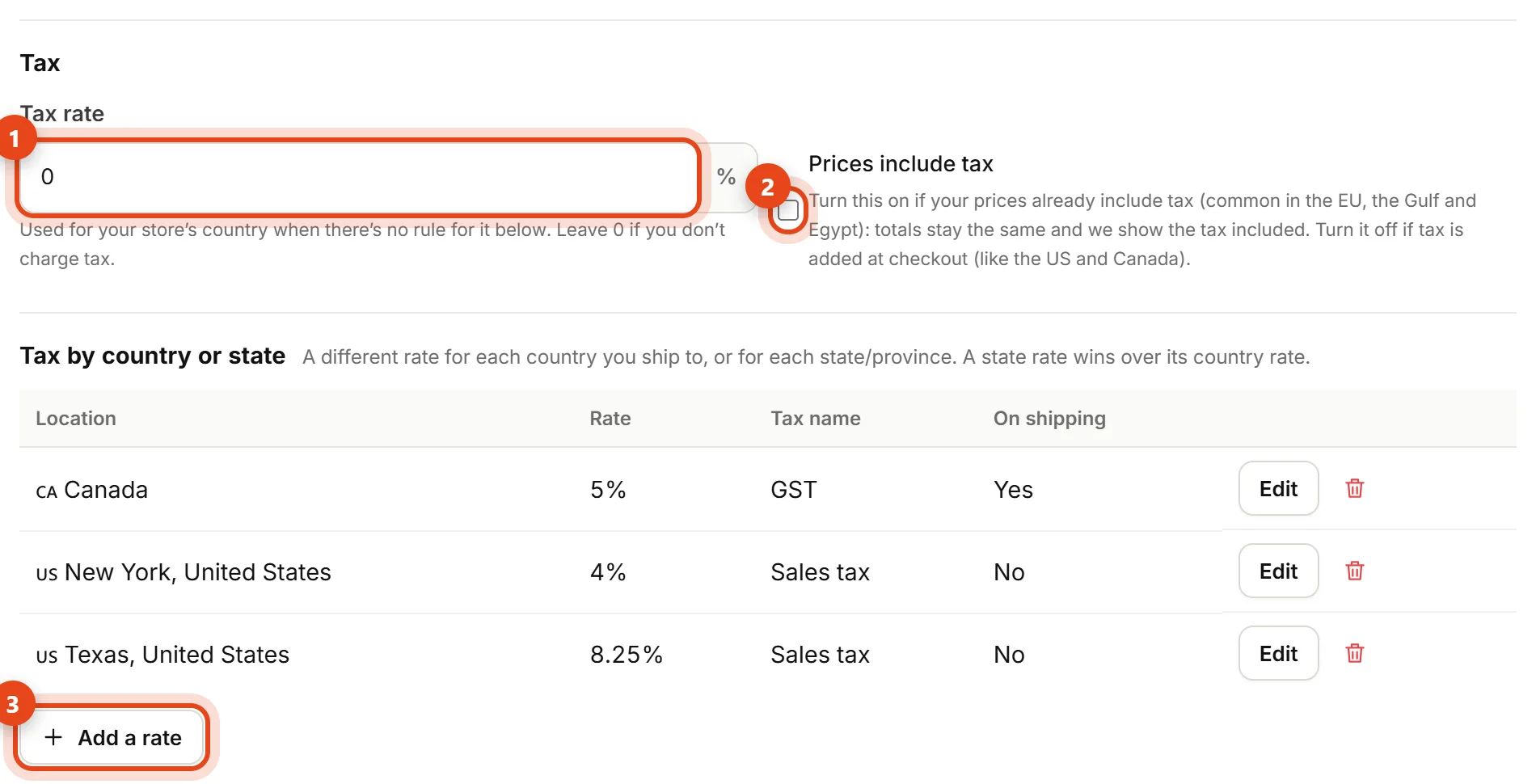
Tax by country or state
A state rate wins over its country rate, and a country rate wins over the general rate above. Every order keeps the tax rate and amount from when it was placed, shown on the order page, the invoice and the customer email — changing your rates later doesn't change past orders. Tax isn't counted as profit in Real profit.
Customer emails and accounts
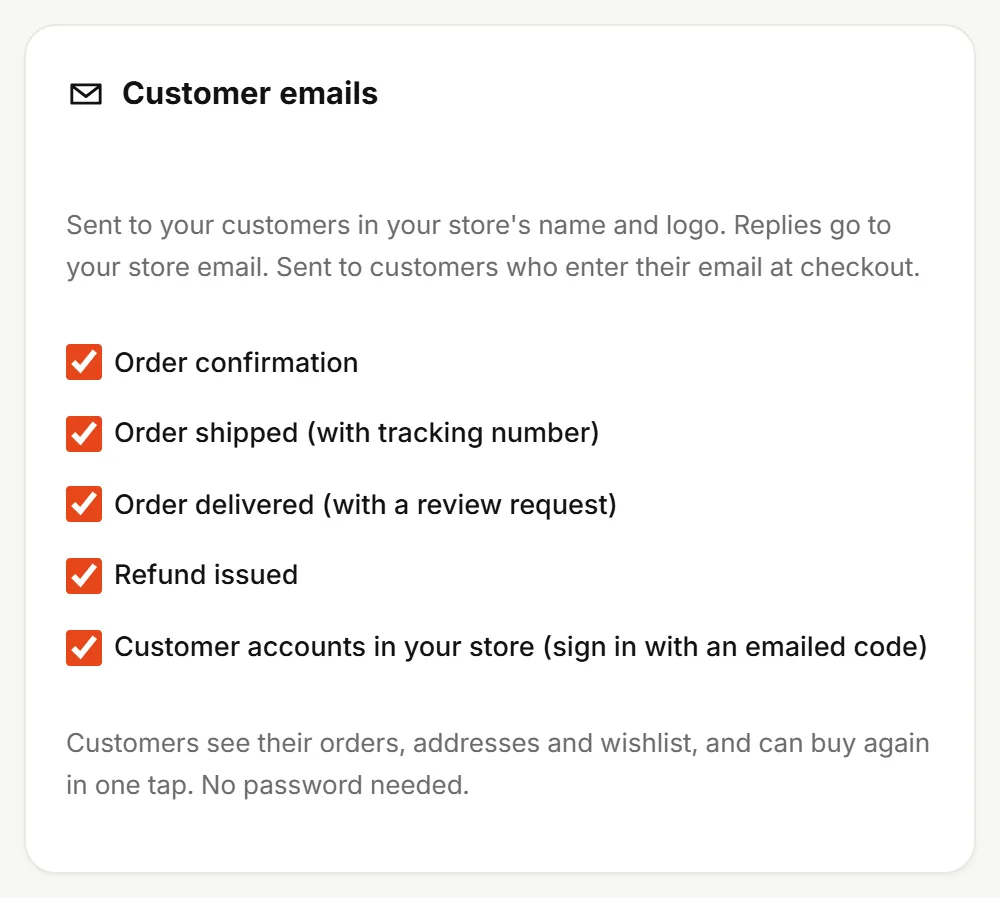
Turn on the emails your customers get with your store's name and logo: Order confirmation, Order shipped (with tracking number), Order delivered (with a review request) and Refund issued. They go to anyone who typed their email at checkout, and replies land in your store's inbox.
Customer accounts in your store: customers sign in with their email and an emailed code, no password, to see their orders, addresses and wishlist, reorder in one tap, and request returns. Uncheck it to hide "My account" from your store. Their saved address, including the ZIP or postal code where it's used, fills in automatically at checkout.
Policies

Four policies show at the bottom of your store: Returns & exchanges, Shipping & delivery, Privacy and Terms & conditions.
- Click Generate automatically.
- Answer a few questions: return window, who pays return shipping, refund time, processing and delivery times, whether you allow exchanges, and which items can't be returned.
- Click Generate policies. We write them with your store name and contact details, in every language your store uses.
- Review and edit the text if you like, then click Save.
Admin language
Changes the dashboard language for you only; it doesn't change your store's language for shoppers.