
E-receipts (Egyptian Tax Authority)
Connect the POS to the Egyptian Tax Authority's e-receipt system so every sale and return gets an e-receipt with a QR code, sent to the ETA automatically.
Open this page in your dashboardBefore you start
You need these from the ETA portal (e-receipt system):
- Your tax registration number (RIN), activity code and registered trade name.
- Your POS system registered, to get a Client ID and Client Secret.
- Each register device registered, to get its POS serial and pre-shared key.
- An item code: an EGS code you register on the portal, or GS1 for products with a global barcode.
This page shows for Egyptian stores that sell in EGP. Changing the setup needs the Settings permission, and only the store owner can enter connection details and keys.
Setup
Open POS → E-receipts (Egypt).
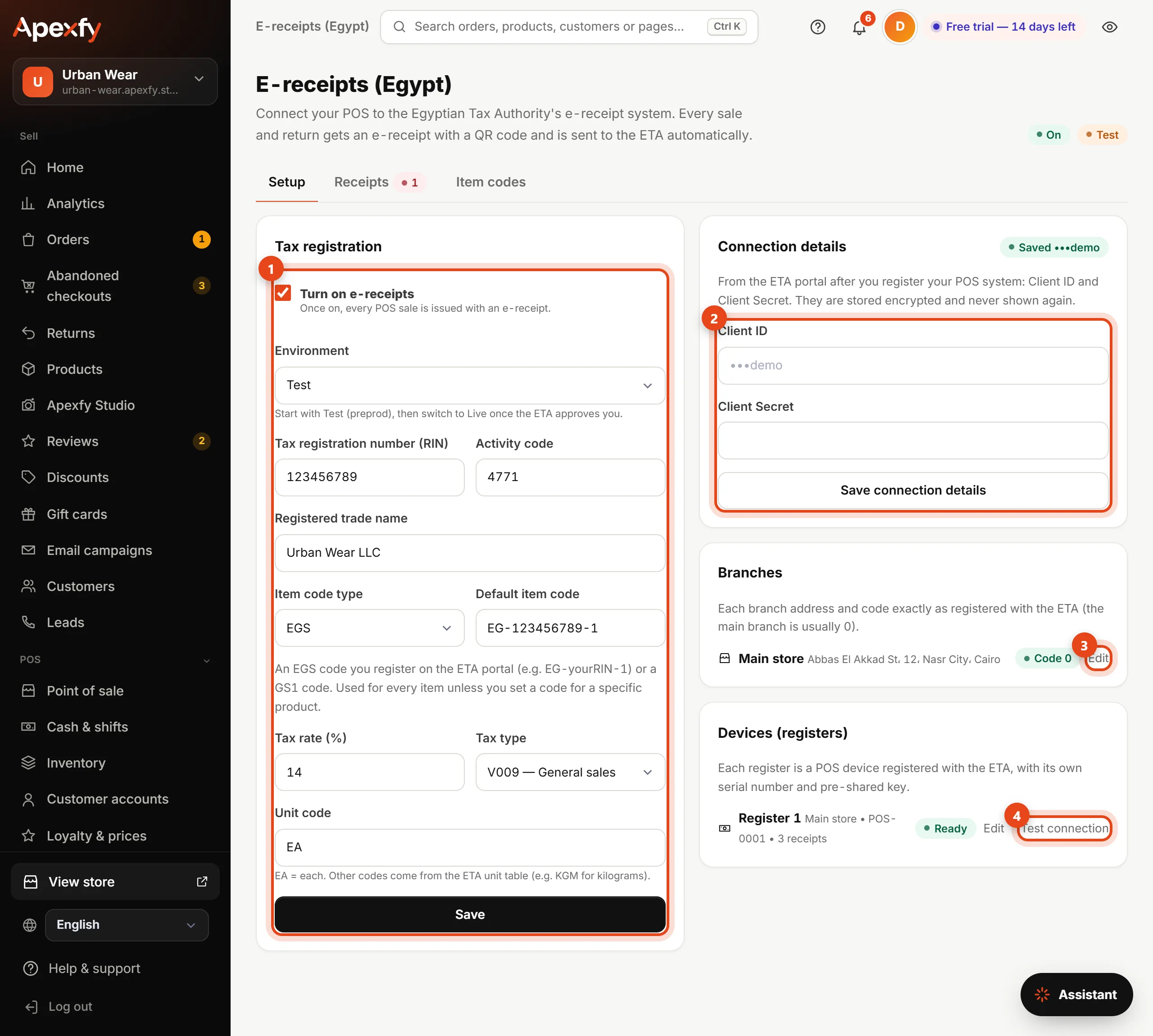
- Under Tax registration, enter your RIN, activity code, trade name, default item code and tax rate (usually 14%). Pick the Test environment first.
- Under Connection details, paste the Client ID and Client Secret. They're stored encrypted and never shown again.
- Under Branches, enter each branch address and code exactly as registered with the ETA.
- Under Devices, enter each register's serial number and pre-shared key, then click Test connection.
- Go back to Tax registration, check Turn on e-receipts and save. Once a test run works and the ETA approves you, switch the environment to Live.
While you sell
Nothing changes for the cashier. Every POS sale gets an e-receipt the moment it's made, and the printed receipt carries the ETA QR code and the receipt UUID. Customers scan it to see the receipt on the ETA portal, and the same code shows on the digital receipt page.
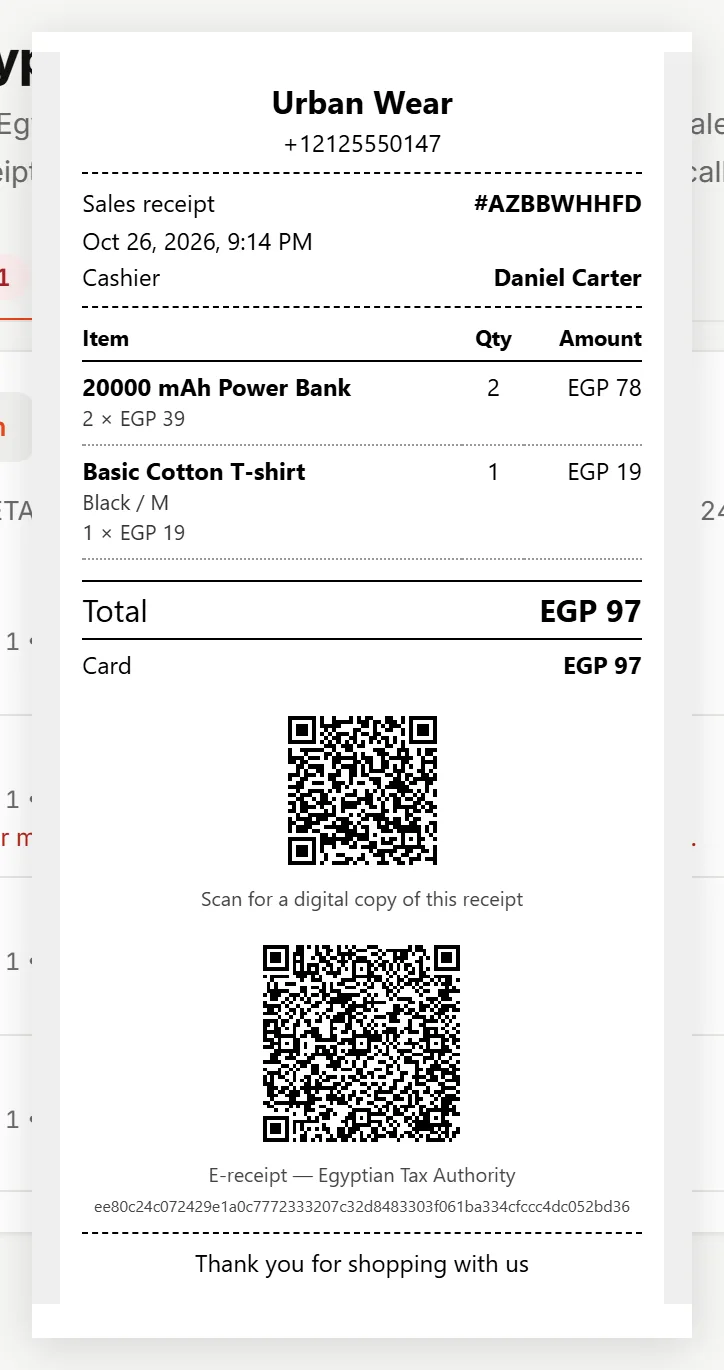
- POS prices include tax. The e-receipt works out the pre-tax price and the tax for each item, and spreads any sale discount across the items.
- A return gets a return receipt linked to the original sale receipt.
- Receipts go to the ETA automatically every minute. If the internet drops, they're sent when it's back. They must reach the ETA within 24 hours of the sale.
Track your receipts
The Receipts tab lists every receipt and its status: waiting to send, sent, accepted, rejected or on hold.
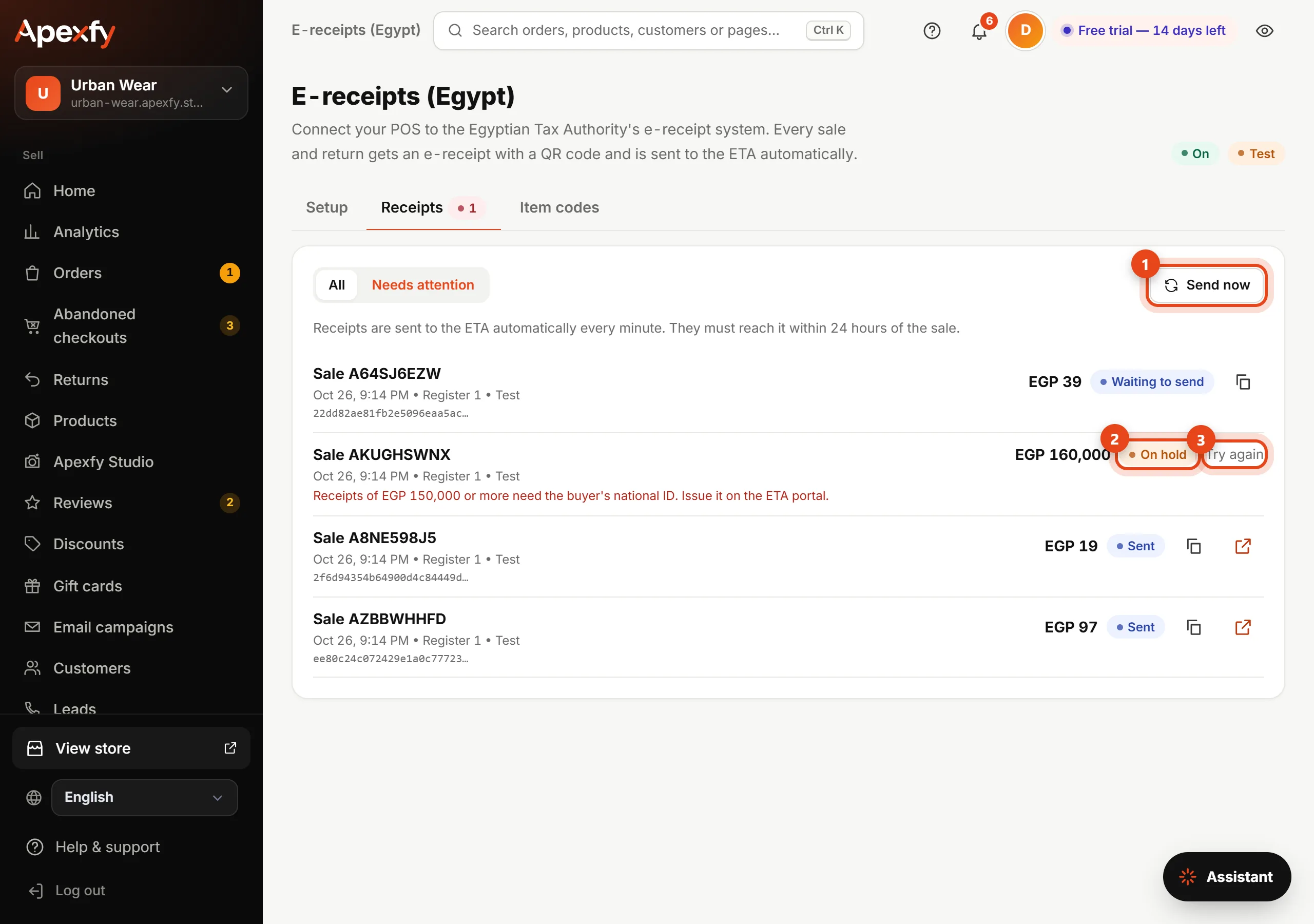
- Send now sends anything waiting right away instead of waiting for the next minute.
- A rejected receipt shows the reason the ETA gave (an invalid item code, for example). Fix it in the setup.
- An on hold receipt was issued before the setup was complete (a branch address or device details were missing). Complete them, then click Try again within 24 hours.
Sales of EGP 150,000 or more need the buyer's national ID. These are put on hold, and you issue their receipt on the ETA portal.
Item codes
Use the Item codes tab to give a product its own code or a different tax rate. Products without their own code use the default code.

- Search for the product by name, SKU or barcode.
- Click Edit and enter its code (EGS or GS1), or a 0 rate with type V003 for exempt items.
FAQ
- Does this issue B2B e-invoices? This page covers e-receipts (sales to consumers). B2B e-invoices need a digital signature token and are issued on the ETA portal.
- What about online orders? The connection covers POS sales only for now.