
Grocery and retail: weight, scales, quick keys and labels
Sell items by weight or length, read scale barcodes, add quick keys for your best sellers, and print barcode labels with prices.
Open this page in your dashboardItems sold by weight or length
For cheese, produce, fabric, or anything sold by the pound, kilo or foot.
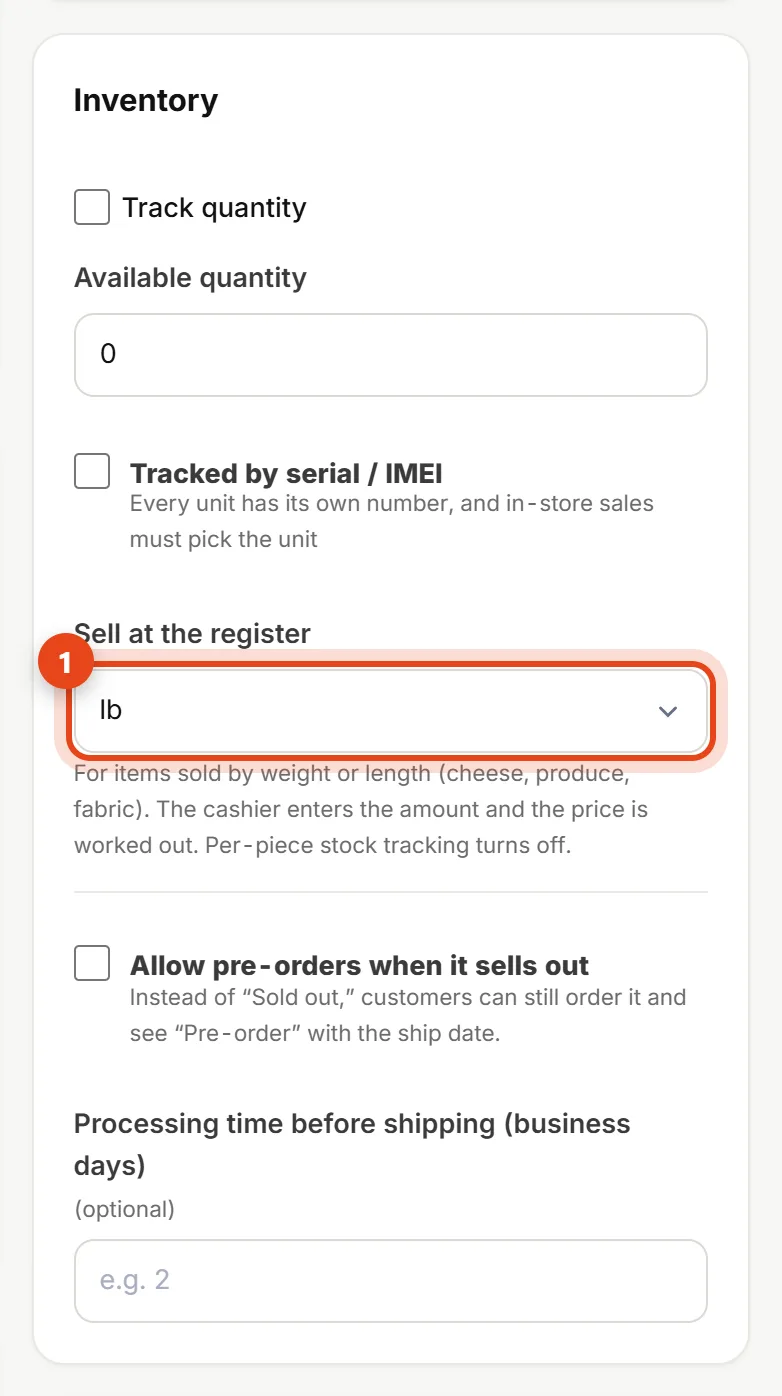
- Open the product from Products, and under stock pick how it sells at the register: kg, g, lb, L, m…
- The product price becomes the unit price (price per kilo, for example).
- Save. Per-piece stock tracking turns off for this item.
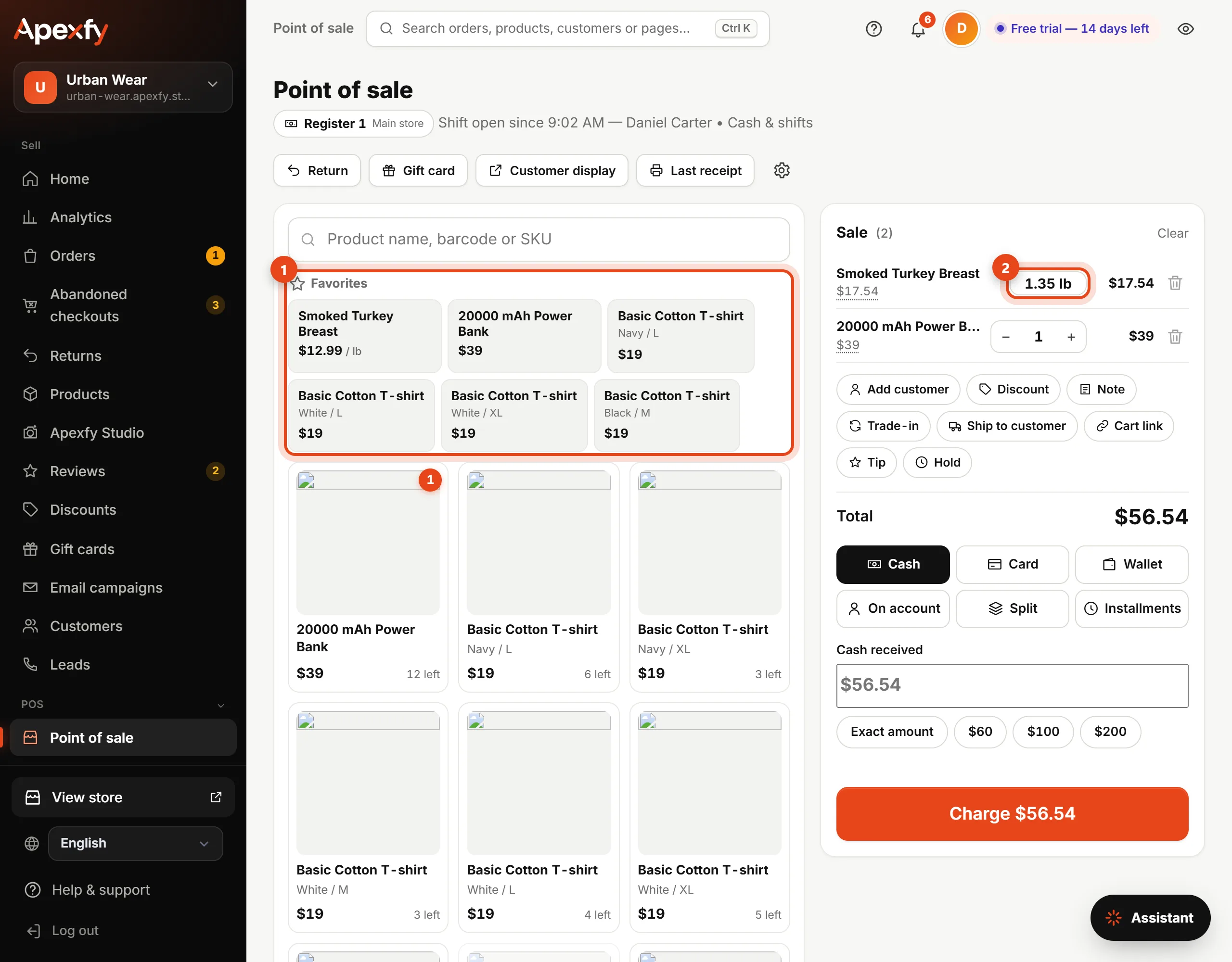
At Point of sale, adding the item asks for the amount (like 0.750 kg), and the price is worked out and printed on the receipt.
Scale barcodes
If your scale prints barcodes, the cashier scans one and the item is added with its weight right away.
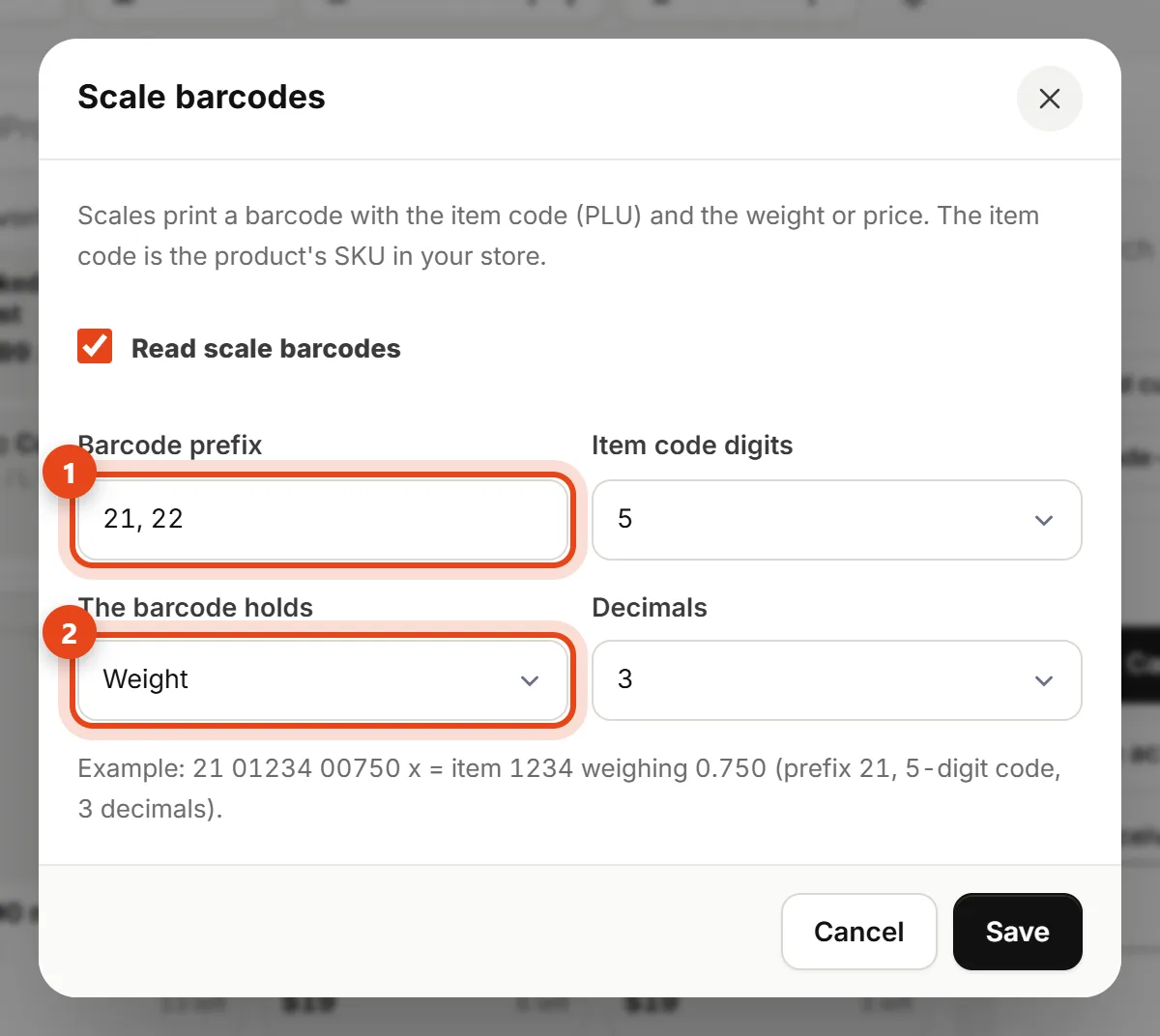
- At Point of sale, click ⚙, then Scale barcodes.
- Turn on Read scale barcodes, enter the prefix your scale starts with (like 21), how many digits the item code has, and whether the barcode holds the weight or the price.
- The item code on the scale (PLU) must match the product's SKU in your store.
These settings are in your scale's manual, or ask whoever set it up.
Quick keys
Your best sellers show above the products in a Favorites strip so you can add them in one tap. From ⚙, pick Quick keys to add or reorder up to 48 items.
Barcode labels
Open Inventory → Barcode labels.
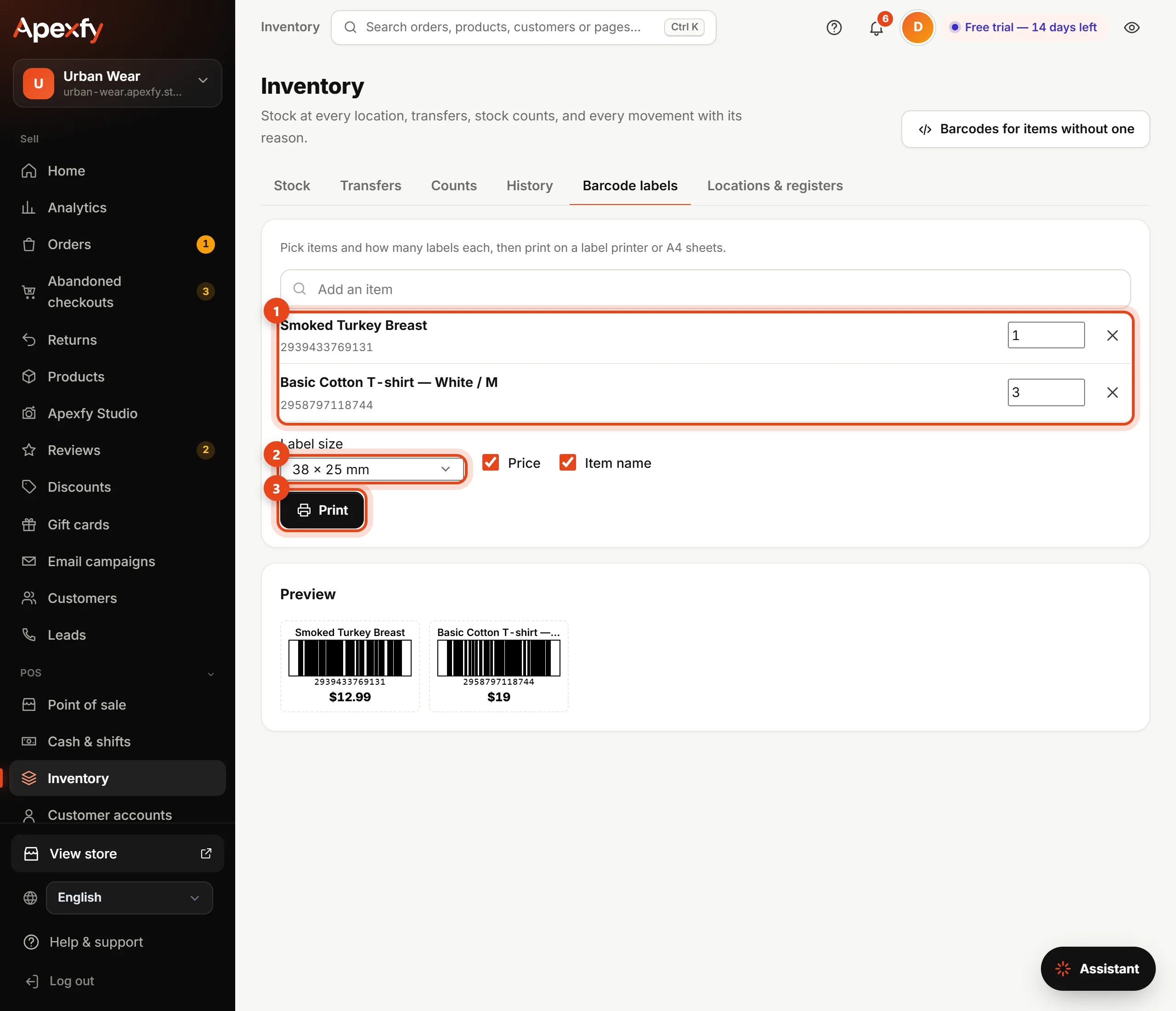
- Add items and how many labels you need for each.
- For items without a barcode, click Barcodes for items without one to create in-store barcodes.
- Pick a label size (38×25, 50×30, 58×40 mm or an A4 sheet) and whether to show the price and name, then Print.
Changing settings needs the Settings permission. Any cashier can sell by weight and use quick keys.