
Restaurants and cafés: add-ons, tables and the kitchen
Add-ons with their own prices, tables and open orders, sending to the kitchen with a kitchen display, takeout and delivery, and separate checks.
Open this page in your dashboardTurn on restaurant mode
At Point of sale, click ⚙, then Restaurant & tables. Turn on Restaurant mode and add your tables (a name and an area like Dining room or Patio). Once it's on, a Tables button shows at Point of sale and Kitchen display shows in the menu.
Add-ons (sizes and extras)
Open the item from Products, and under Add-ons add a group for each choice.

- Give the group a name (like Size or Extras), say how many choices are allowed (one, any number, or up to a limit), and whether it's required.
- Give each choice an extra price (zero if it's free).
At Point of sale, adding the item shows its choices and works out the price, and you can add a note for the kitchen (like "No onions").
Tables and open orders
Click Tables. A busy table shows its order total.

- Tap a free table to open an order on it, or a busy one to open its order.
- Use New takeout order or New delivery order for orders without a table.
- Orders are saved on the server, so any register can open and continue them.
Send to the kitchen
Add the items and click Send to kitchen. Items already sent get a ✓, and next time only the new ones are sent.

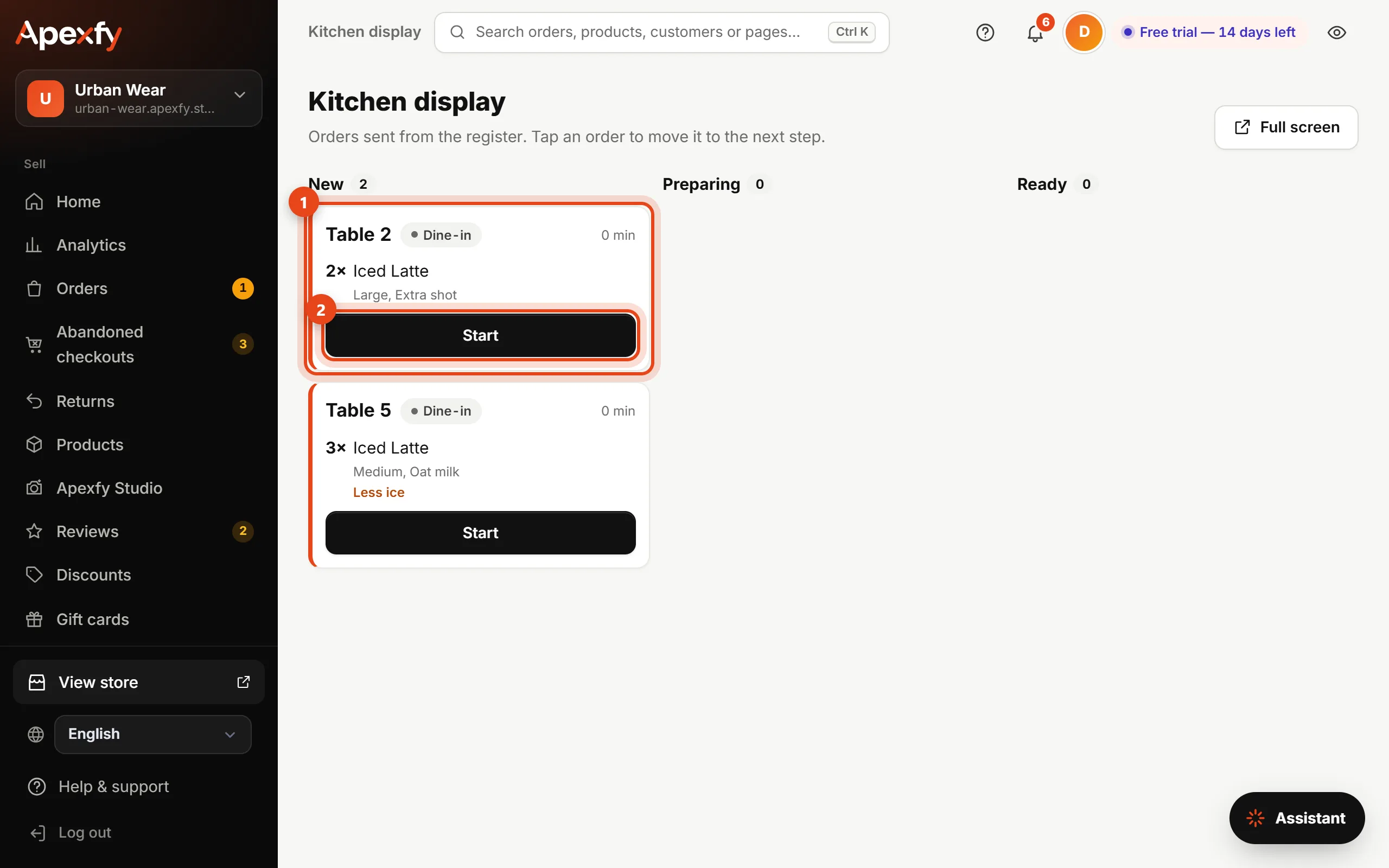
Kitchen display
Open Kitchen display on a screen or tablet in the kitchen. Orders show up on their own with a sound, and the cook taps Start, then Ready, then Served. Orders older than 15 minutes are marked red.
Pay and split the check
- Click Charge to pay the whole order, and the table frees up.
- Pay part: pick the items and quantities paid now (a separate check per person). The rest stays on the table until it's paid.