
Receipts, loyalty points and price lists
Design your receipt, send customers a digital copy by WhatsApp or email, show the sale on a screen facing them, reward them with loyalty points, and set wholesale or VIP prices.
Open this page in your dashboardReceipt design
Open Cash & shifts → Receipt. Every change shows up right away in the Preview.
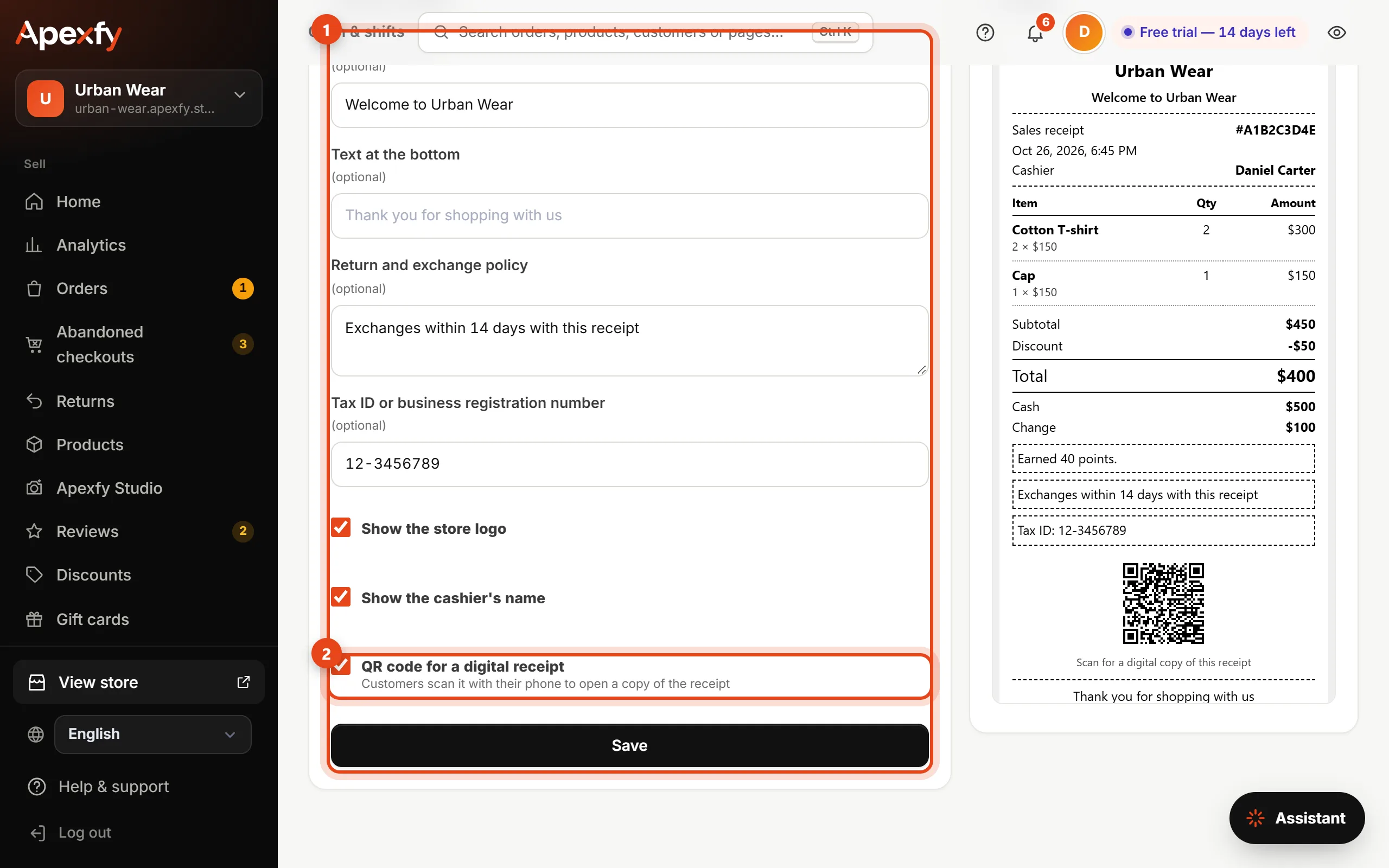
- Add text for the top and bottom of the receipt.
- Add your return policy and your tax ID or business registration number, and choose whether to show your logo, the cashier's name and a QR code for a digital receipt (customers scan it with their phone to open a copy).
- The preview shows the receipt as it will print.
Sending the receipt
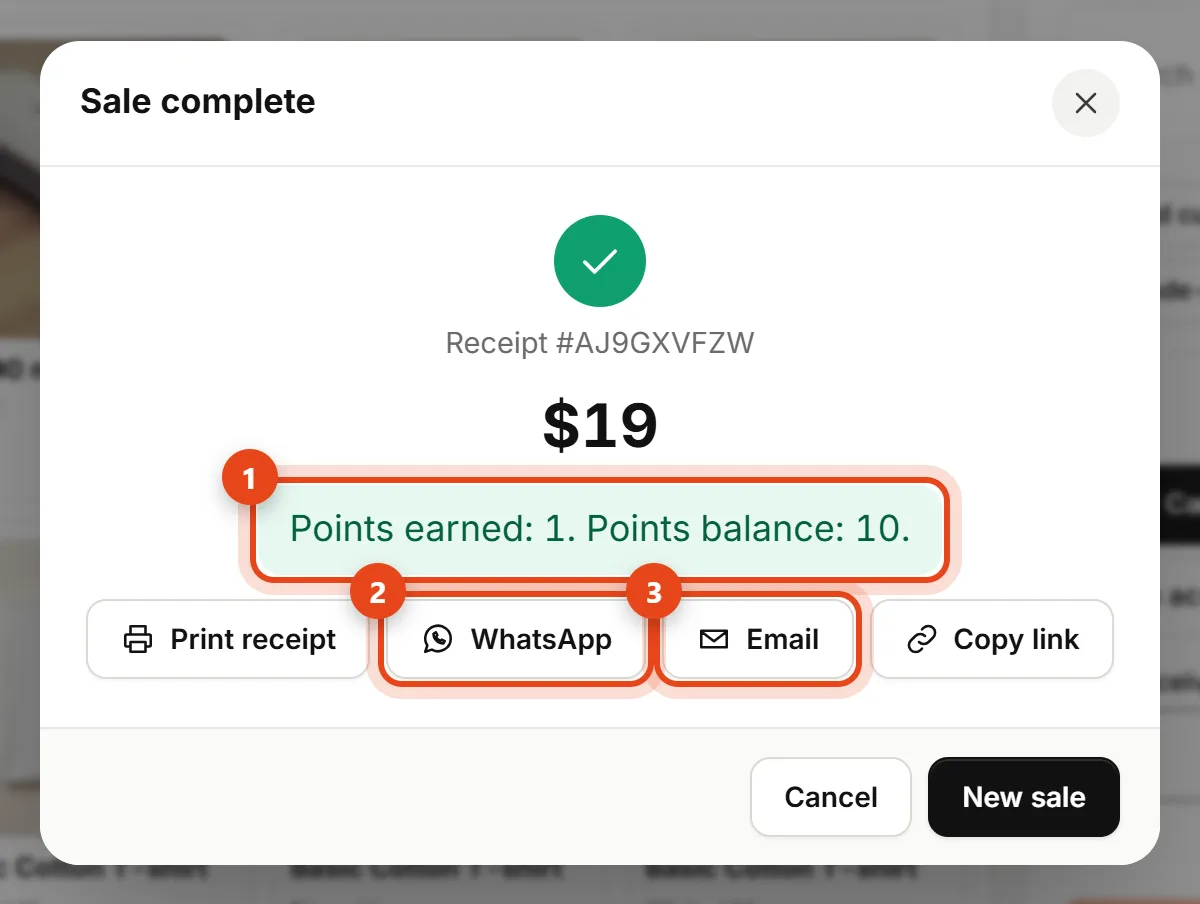
After each sale you get WhatsApp (if you entered the customer's phone), Email and Copy link buttons. The link opens the receipt on your store's site, without the customer's phone number.
Customer display
Click Customer display at the top of Point of sale and drag the new window to a second screen facing the customer. It shows the items and total as you ring them up, then a thank-you, their change and the digital receipt QR code. It runs on the same device with no setup.
Loyalty points
Open POS → Loyalty & prices.
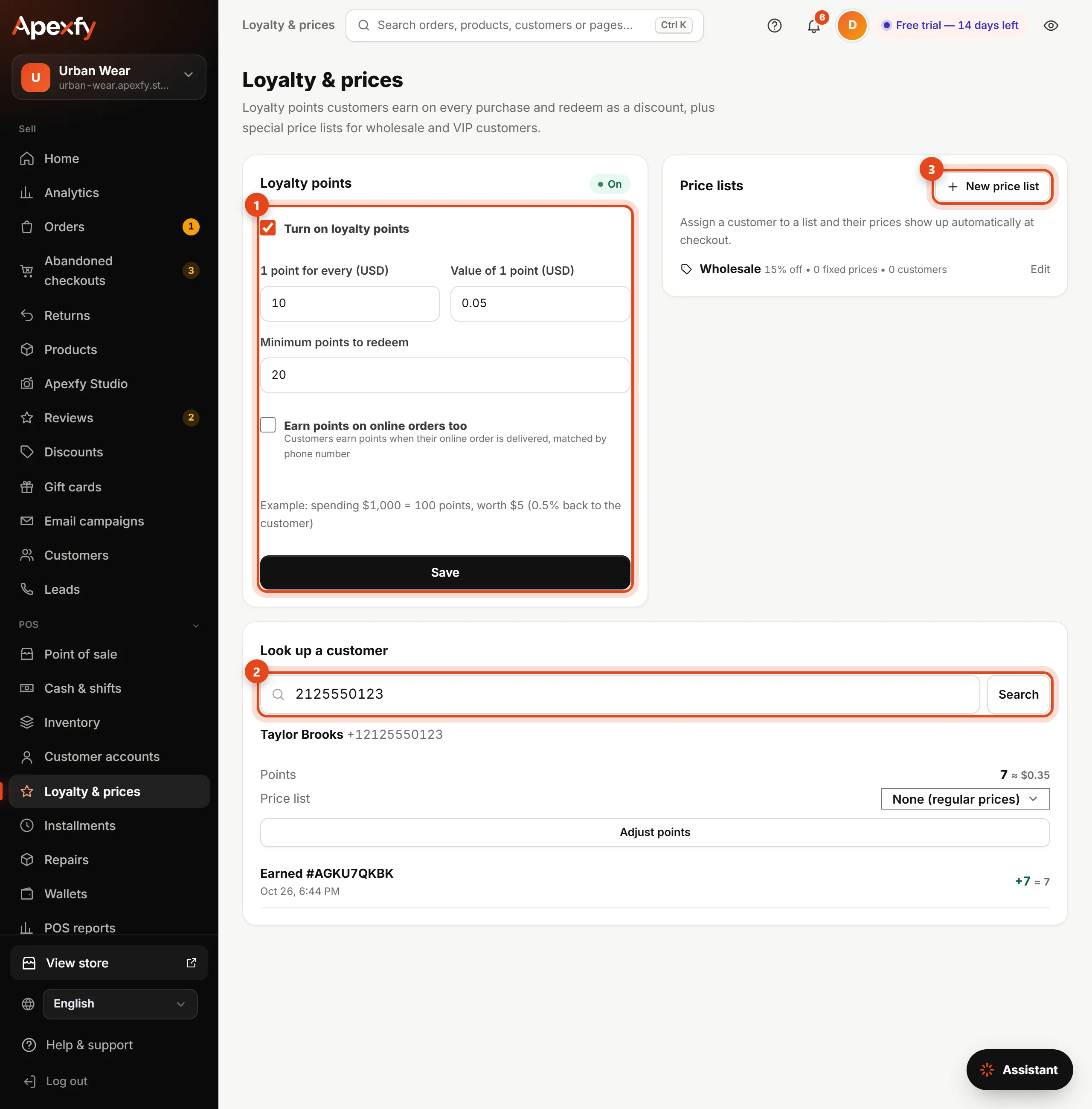
- Turn on Loyalty points, then set how customers earn (1 point for every amount you choose), the Value of 1 point, and the minimum points to redeem. The example under the fields shows how much goes back to the customer.
- Customers earn points automatically when they buy at the counter with their phone number. Turn on Earn points on online orders too so they also earn when an online order is delivered.
- To redeem: add the customer at Point of sale, choose Split, then Points.
Price lists (wholesale and VIP)
- Under Price lists, click New price list, enter a name and a discount for all products, and add fixed prices for specific items if you like.
- Under Look up a customer, search by phone and pick their list.
- At Point of sale, adding that customer switches the prices automatically, with no manager approval needed.
Changing these settings and lists needs the Settings permission. Any cashier can take points and sell at list prices.