
Repairs: checking devices in and handing them back
Open a ticket for each device, track the repair, use parts from stock, hand it back with the bill, and send the customer a status link.
Open this page in your dashboardOpen POS → Repairs and click Check in a device.

- Enter the customer name and phone, the device and its IMEI if it has one, the problem, and anything you received with it.
- Enter the Estimate, a Deposit if the customer paid part up front, and the Warranty in days.
- Click Check in and print label. A label with the ticket number (like R-1001) prints so you can stick it on the device. It has a QR code the customer can scan with their phone camera to check on the repair.
During the repair
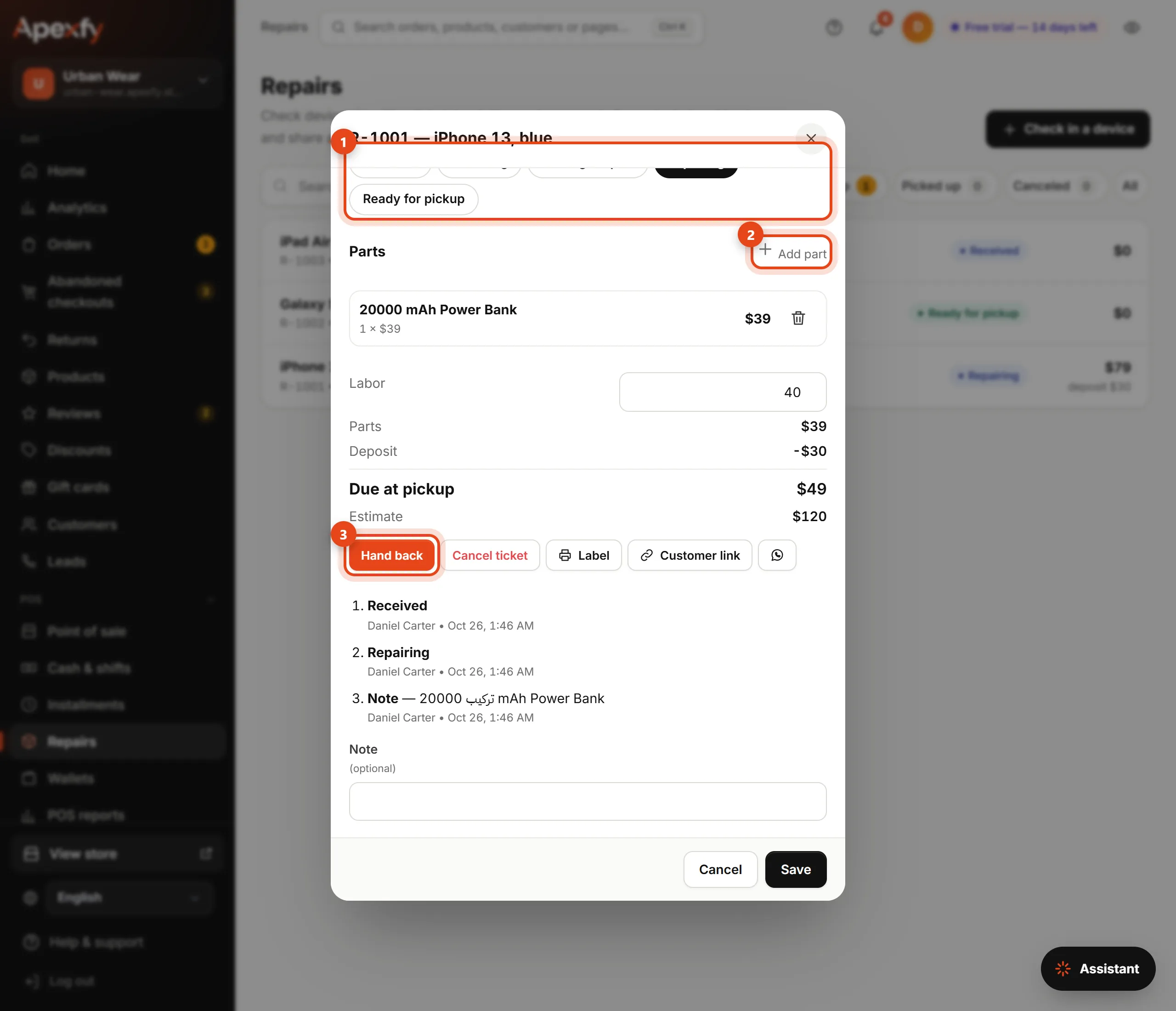
- Move it along: Checking, Waiting for part, Repairing or Ready for pickup.
- Add part takes it out of stock at its cost. You can remove it again (it goes back to stock) if it was added by mistake.
- Enter the Labor. The bill is parts + labor − deposit.
- Customer link or the WhatsApp button sends the customer a page to follow their repair, without the passcode or their phone number.
Handing back or canceling
- Hand back collects what's left and turns the ticket into a POS sale with the parts and labor, so it shows in sales, reports and analytics.
- Cancel ticket puts the parts back in stock and refunds the deposit.
- Search by IMEI to see earlier repairs for a device and when its warranty ends.
If the device is one of your own units (registered in Devices), it is marked "in repair" and can't be sold until it's handed back.