
Sell on Google, Facebook and TikTok
Connect your store to Google Merchant Center, Meta catalogs, TikTok, Pinterest and Snapchat with one feed link that updates itself.
Open this page in your dashboardA feed is a link with all your active products (title, price, images and stock). You paste it into a platform once and it fetches it every day, so any change in your store reaches it automatically.
The basics
- Open Sales channels from the menu. If it says feeds are off, click Turn on feeds.
- On the card for the platform you want, click Copy next to Feed URL.
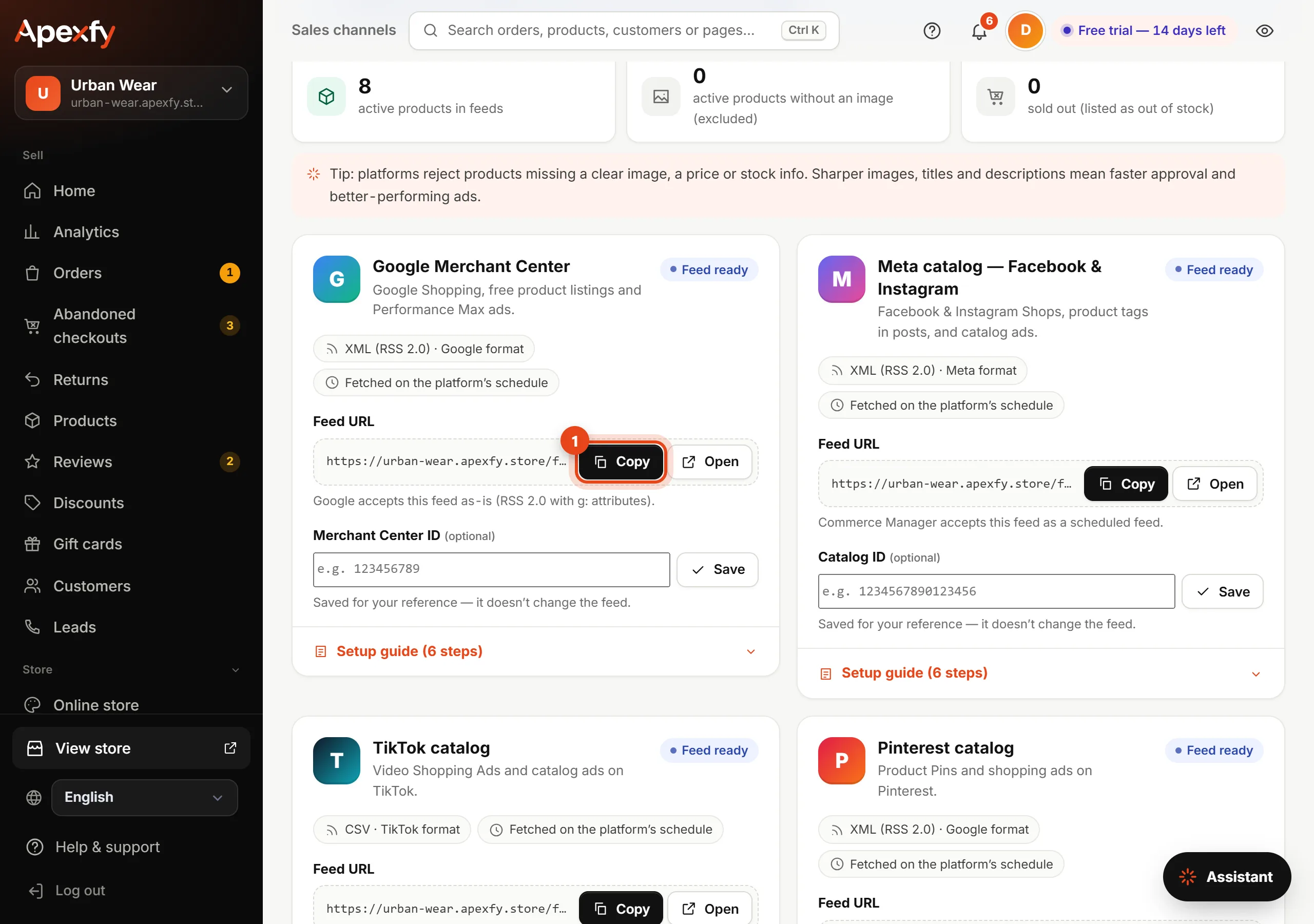
Sales channels and the feed URL - Open the Setup guide on the same card and follow it. It has the steps in order and a button that opens the platform.

Google Merchant Center setup steps - Enter your account or catalog ID in the optional field and click Save to keep it handy (it doesn't affect the feed).
Connect your store to Google Merchant Center
- Open Merchant Center and sign in with your Google account (it's free).
- Verify and claim your website under Settings → Business info → Website, using your store's address.
- Go to Products → Add products → Add from a file.
- Choose Enter a link to your file and paste the Google feed URL.
- Set the fetch schedule to daily, pick the country you sell in and your store's language and currency, then save.
- Wait for processing (usually a few hours), then review any products flagged on the Products page.
Once approved, your products show up in Google Shopping and free listings, and you can use them in Performance Max ads.
To verify your website with an HTML tag, paste the code under Settings → Ads & tracking → Google Search Console verification. (Tracking tools)
Other platforms
| Platform | Feed type | Where it goes |
|---|---|---|
| Meta catalog (Facebook and Instagram) | XML, Meta format | Commerce Manager → Data sources → Data feed → Scheduled feed |
| TikTok catalog | CSV, TikTok format | TikTok Ads Manager → Assets → Catalogs → Data feed |
| XML, Google format | Pinterest Ads → Catalogs → Data source | |
| Snapchat | XML, Google format | Snapchat Ads Manager → Catalogs |
The full steps for each platform are in the Setup guide on its card.
Why isn't a product showing?
The top of the page shows how many products are in the feed, how many have no image (not listed), and how many are out of stock (shown as "out of stock").
- Platforms reject products without a clear image or a price. Add images from Products.
- If your store has more than one language, there's a link per language. Add one for each audience you sell to.
- Feed prices are in your store's currency.
Menu names on each platform can differ a little depending on its language and updates; the idea is the same.