
Newsletter and email campaigns
Collect customer emails with their consent and send offers and new products under your store's name and colors.
Open this page in your dashboardOn the Email campaigns page you collect subscribers from your store, write a message, and send it to all of them or to a group. Emails go out with your store's name, logo and color, and replies go to your store email.
Turn on the newsletter in your store
- Open Email campaigns from the menu and turn on Newsletter signup in your store.
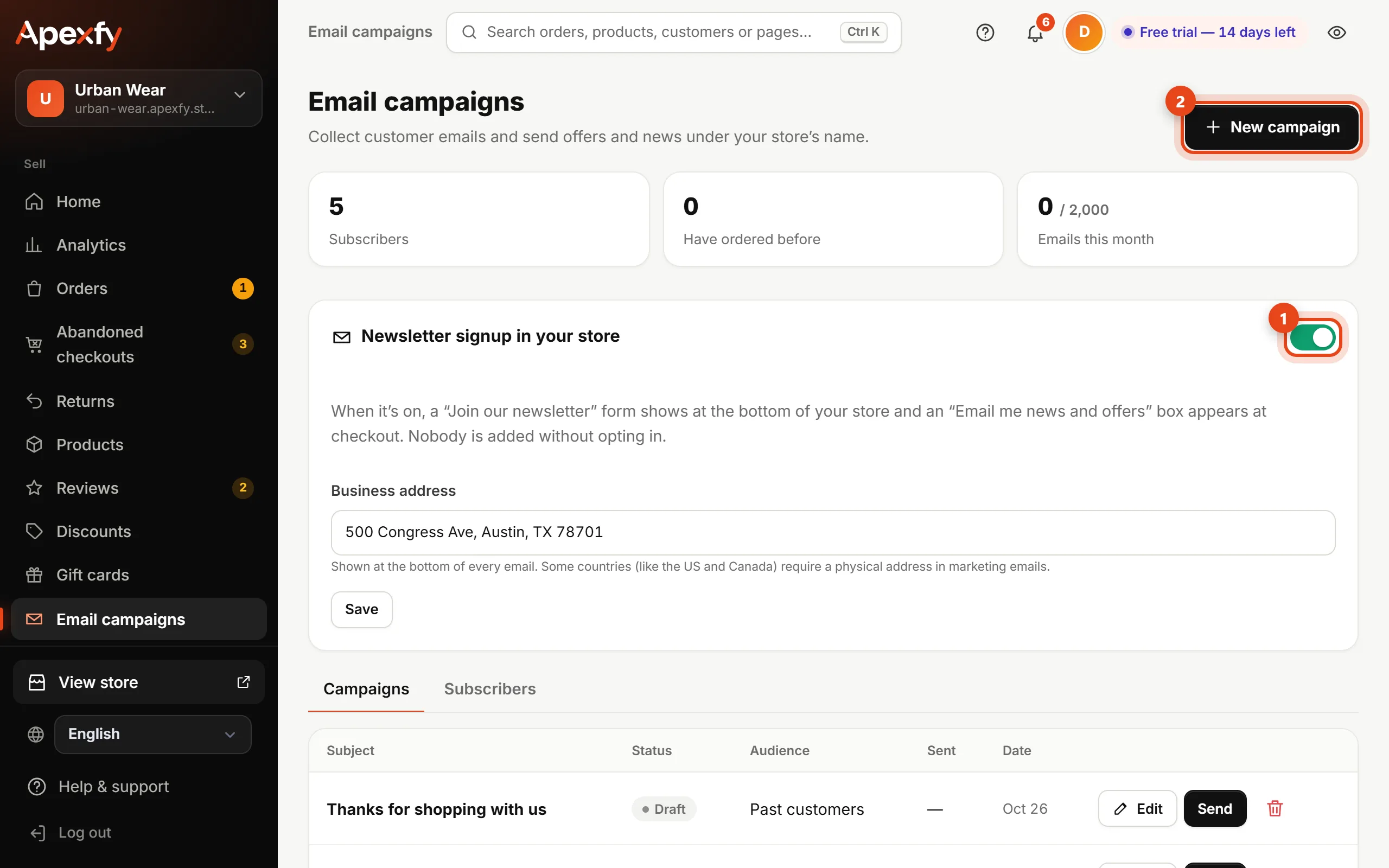
The Email campaigns page - Enter your Business address and click Save. It shows at the bottom of every email.
When it's on, your store shows:
- A Join our newsletter form at the bottom of every page.
- An Email me news and offers checkbox at checkout, next to the email field. It's never pre-checked — customers choose it themselves.
Many countries (including the US, Canada and the EU) require clear consent and a real business address in marketing emails. Every email includes an Unsubscribe link, and people who unsubscribe don't get any more emails.
Write and send a campaign
- Click New campaign and enter a Subject line and your Message.
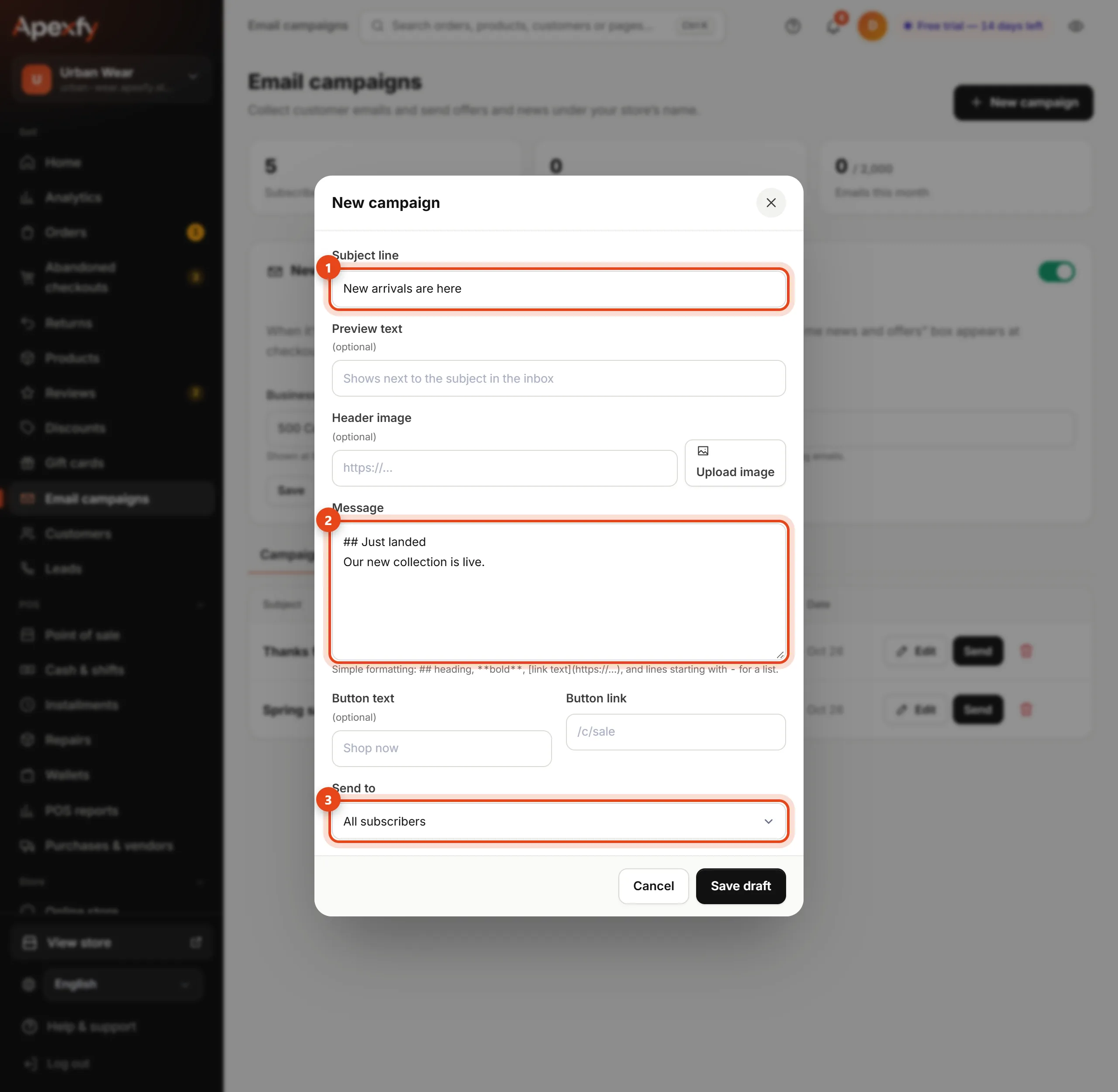
The new campaign window - Optionally add Preview text (shown next to the subject in the inbox), a Header image, and a button that links to a page in your store, like
/c/sale. - Pick who to Send to: all subscribers, past customers, or people who haven't ordered yet. Then click Save draft.
- Click Send next to the campaign. Before sending, click Send me a test to get a copy at your account email and check how it looks.
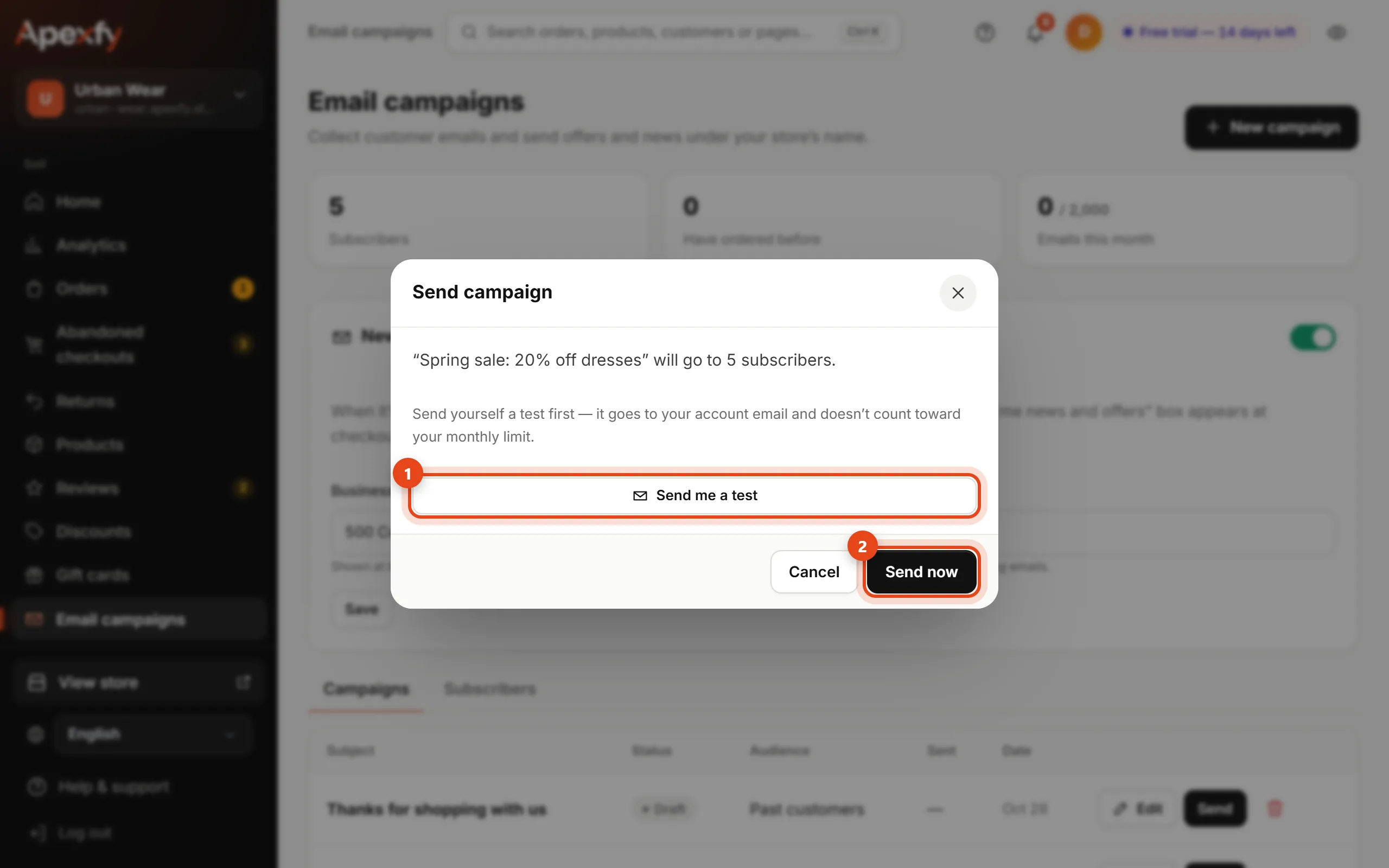
The send window - Click Send now. Emails go out in batches over a few minutes, and the table shows how many were sent. You can Stop sending at any time.
Formatting is simple:
| You type | You get |
|---|---|
## New arrivals | A heading |
20% off | Bold text |
dresses | A link |
A line starting with - | A list |
To reuse an old campaign, click Duplicate next to it and you'll get a new draft with the same content.
Subscribers
Open the Subscribers tab to see every email, where it came from (store form, checkout, import, manual) and its status.
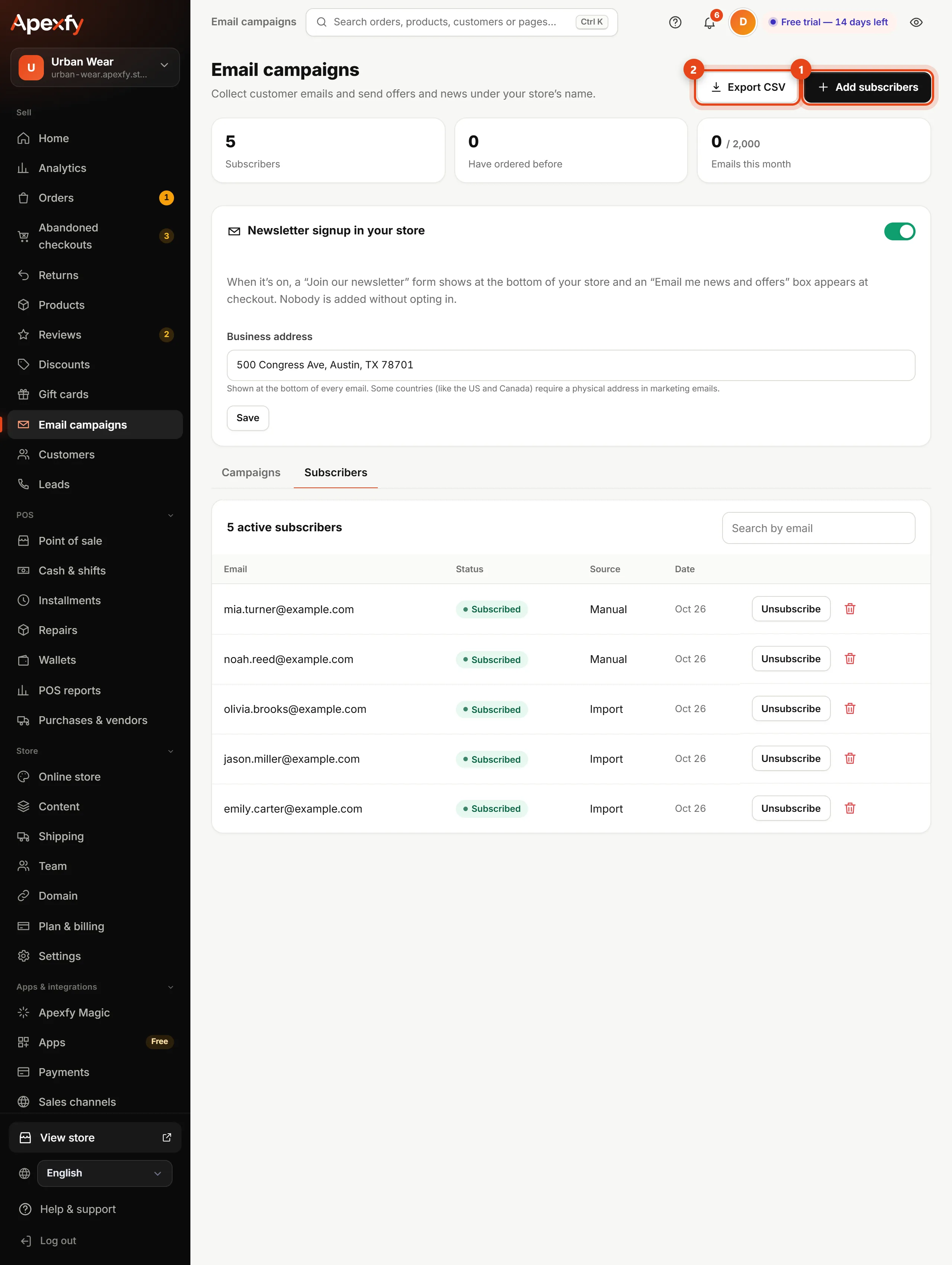
- Add subscribers: paste a list of emails (up to 2,000 at a time) of customers who agreed to hear from you, and confirm they opted in.
- Export CSV: a file with all your subscribers.
- Unsubscribe or Delete any email. Someone who unsubscribed on their own can only come back by subscribing again from your store.
Monthly limit
At the top of the page you'll see how many emails you've sent this month out of your store's limit (2,000 emails a month). Test emails don't count. If a campaign would go over the limit, you'll see that before it sends.
This page needs the Marketing permission. (Team and permissions)