
Discounts and coupons
A coupon code the customer enters, or an automatic offer everyone sees — percentage, fixed amount, free shipping, “buy 2, get the 3rd free”, bundles and volume deals.
Open this page in your dashboardOpen Discounts. You'll see your current offers, and below them ready-made offer ideas you can tap and customize.
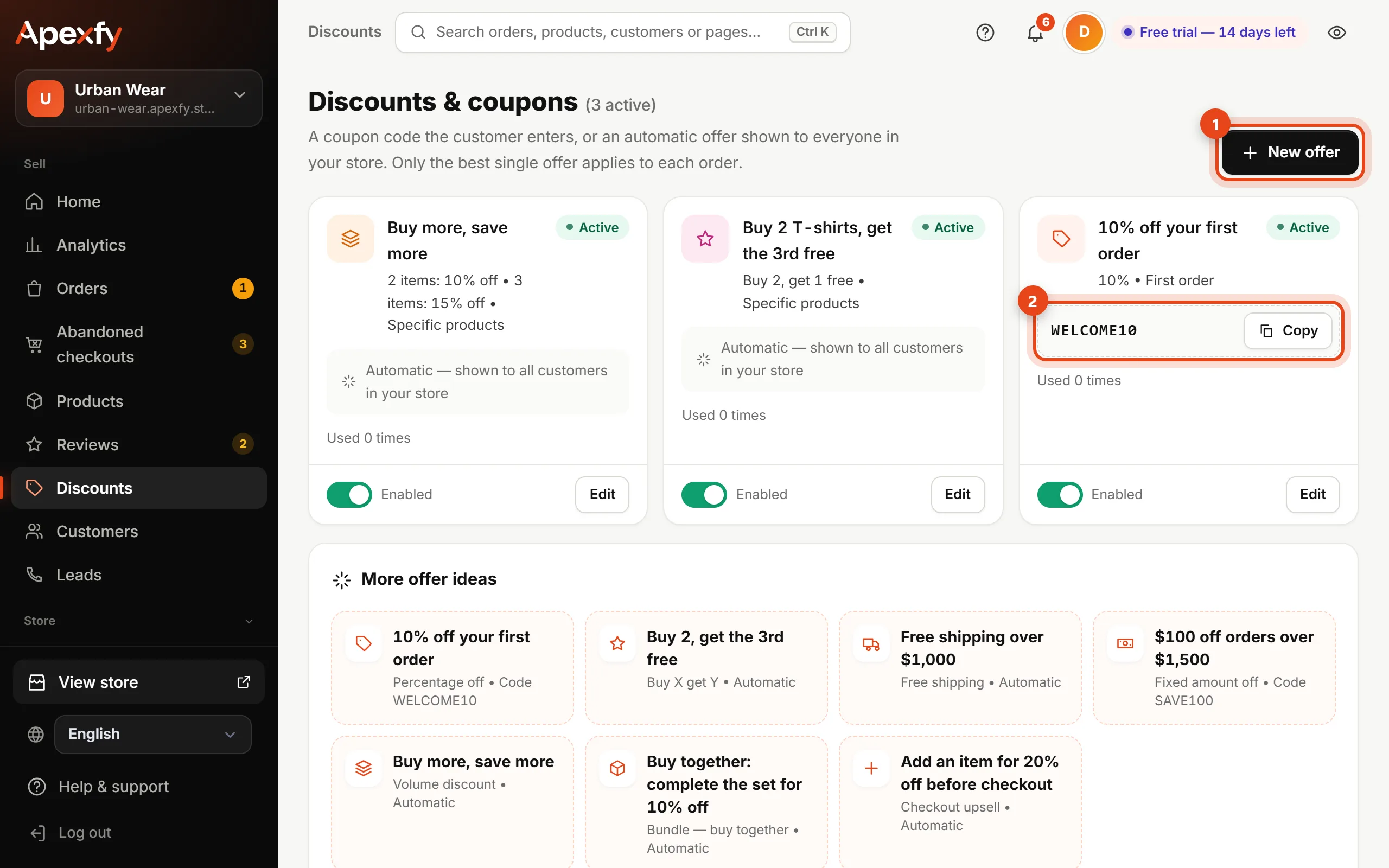
Creating an offer
- Click New offer and type the Offer name as customers will see it.
- Pick the offer type:
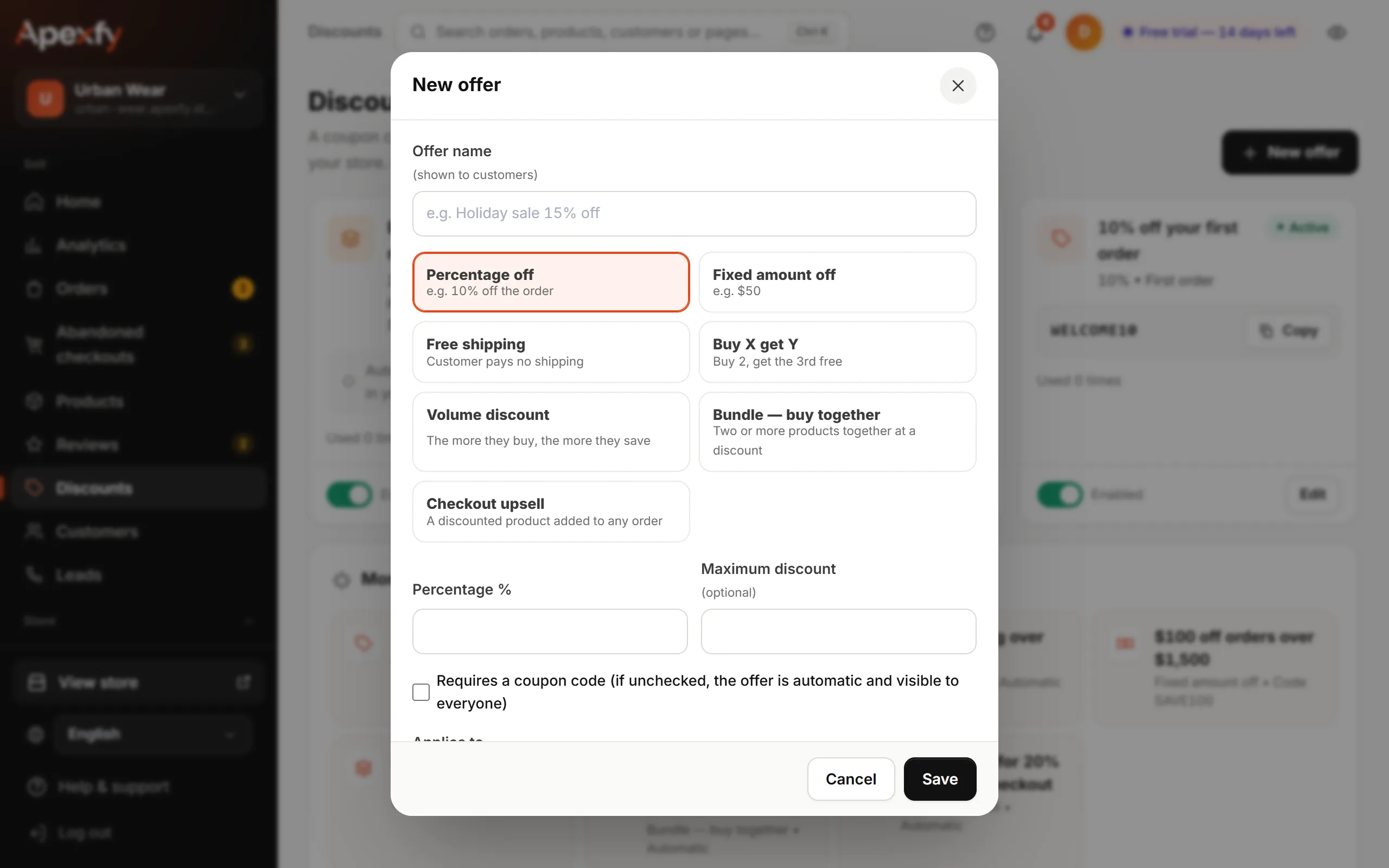
Offer types | Type | Example |
|---|---|
| Percentage off | 10% off the order, with an optional maximum discount |
| Fixed amount off | 100 off orders over 1,500 |
| Free shipping | The customer pays no shipping |
| Buy X get Y | Buy 2, get the 3rd free |
| Volume discount | 2 items 10% off, 3 items 15% off |
| Bundle — buy together | Two or more products together at a discount |
| Checkout upsell | A discounted product the customer adds before checking out |
- Choose whether it requires a coupon code (entered at checkout) or is automatic and shown to everyone.
- Pick what it applies to (all products, or selected products or categories) and any conditions: minimum order value, first order only, once per customer, a usage limit, and start and end dates.
- Click Save.
Only the single best offer applies to each order — discounts don't stack.
After you create it
- Click Copy next to the code to send it to customers or put it in your ads.
- Pause an offer with its switch, or click Edit to change it.
- Each card shows how many times the offer has been used.
Send a coupon to people who left their cart — Abandoned checkouts adds the code to the message in one tap.