
Add your first product
Title, description, photos, price and cost in two minutes — with an AI-written description and a live preview of how it looks in your store.
Open this page in your dashboardSteps
- In Products, click New product.
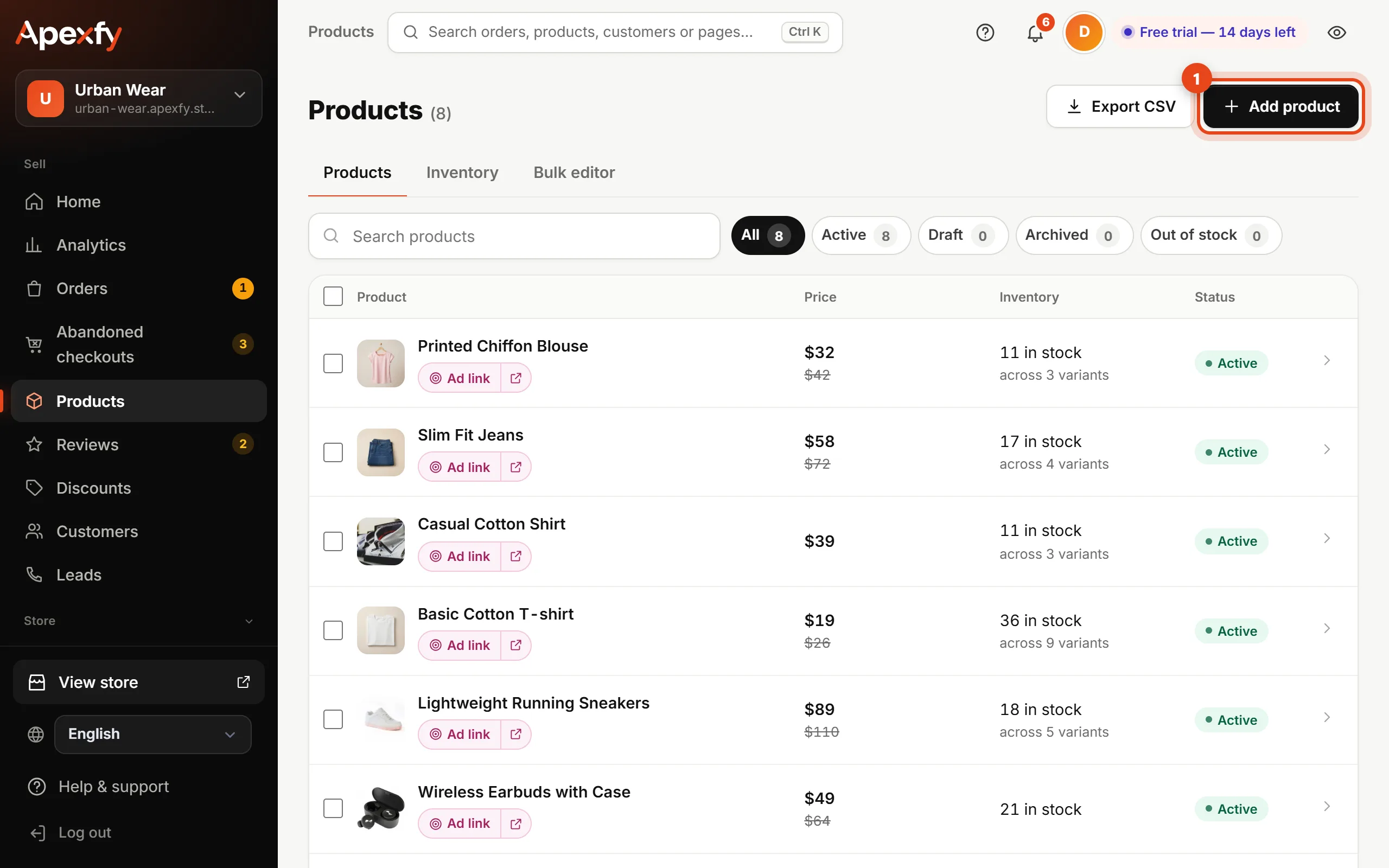
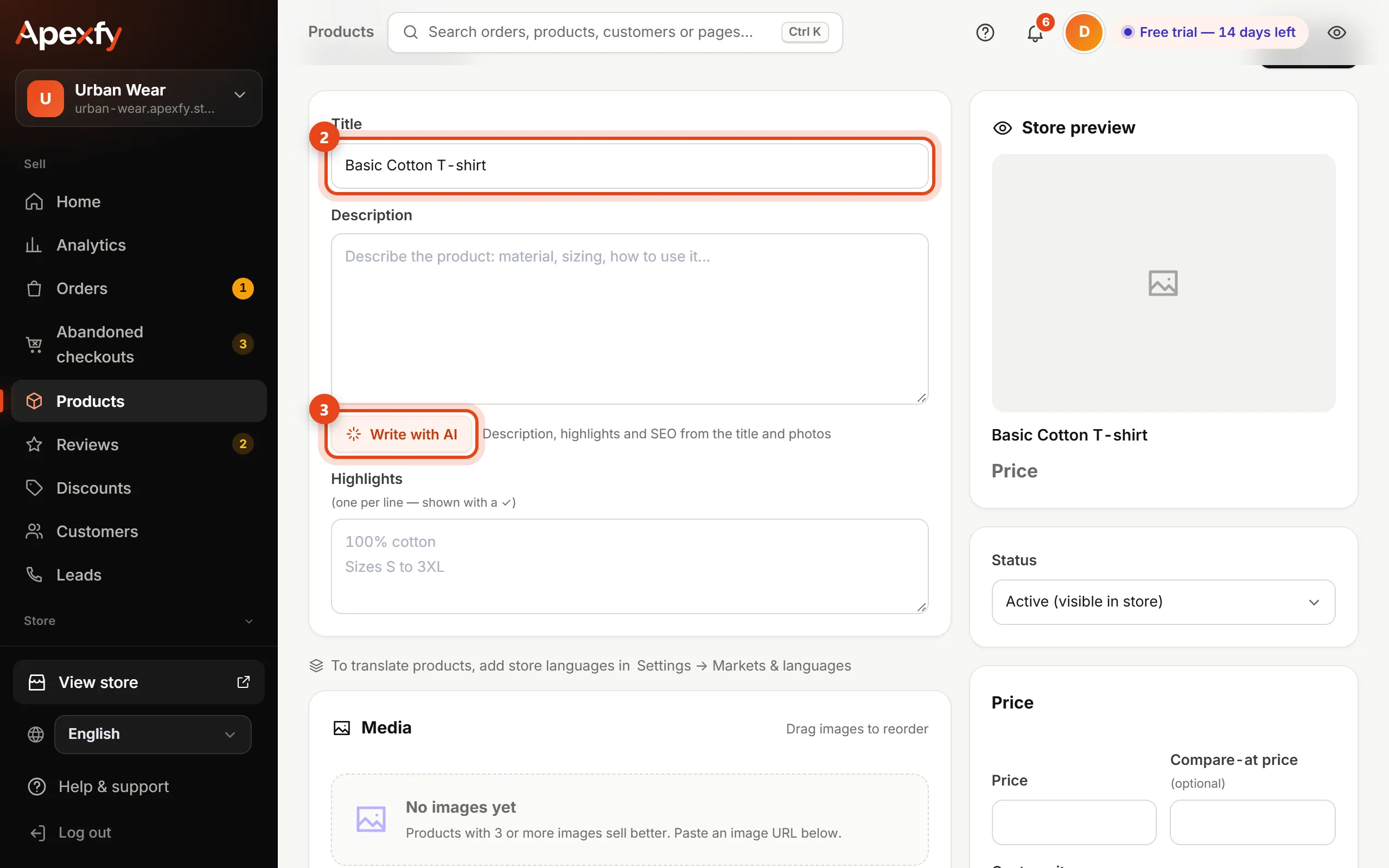
The “New product” button - Type the title, then click Write with AI to get the description, highlights and SEO from the title and photos. Review the text and edit it as you like.
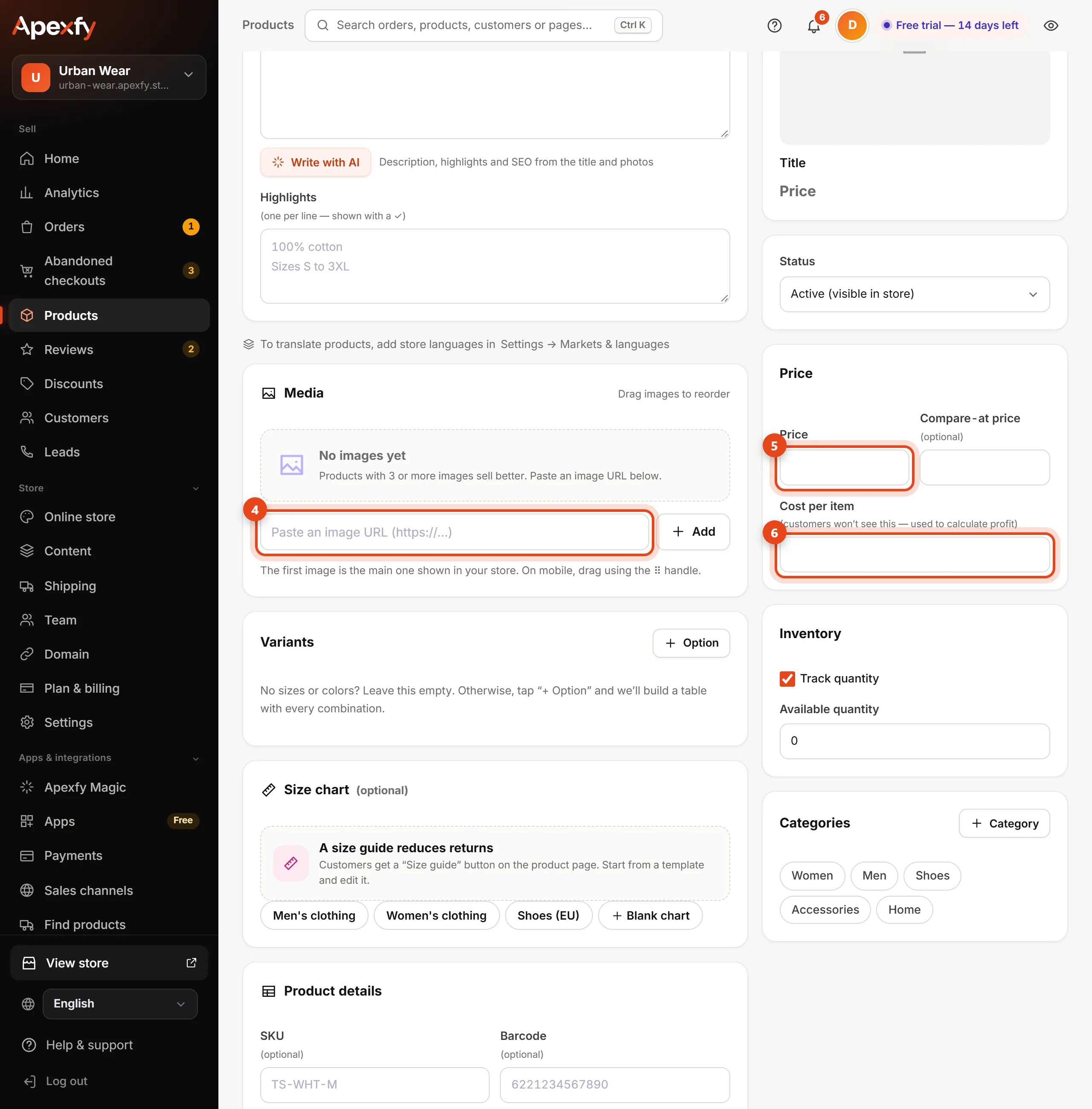
The title and the Write with AI button - Add photos by pasting an image URL and clicking Add, then fill in the Price and Cost per item.
Photos, price and cost - Pick a category, keep the status Active so it shows in your store, and save.
Products with 3 or more photos sell better. The first photo is the main one in your store — drag photos to reorder them.
Why enter the cost?
Customers never see the cost per item. We use it to show your real profit per order and per product, after shipping, returns and ads.
Other useful fields
- Compare-at price: shown crossed out next to the price so customers see the discount.
- Track quantity: enter the stock and it goes down with every order. Inventory
- Variants: if the product comes in sizes or colors. Sizes and colors
- Size chart: adds a “Size guide” button on the product page and cuts returns.
- Product details: SKU, barcode, weight and tags.
- Search engines: a Google title and description and the product URL.
Have lots of products on Shopify, WooCommerce or in a spreadsheet? Don't add them one by one — move them in one go.