
Team and permissions
Invite staff with a link you can send on WhatsApp, choose what each person can do, and see what everyone did and how they're doing on confirming orders.
Open this page in your dashboardOpen Team (store owner only). The top shows how many staff accounts your plan includes.
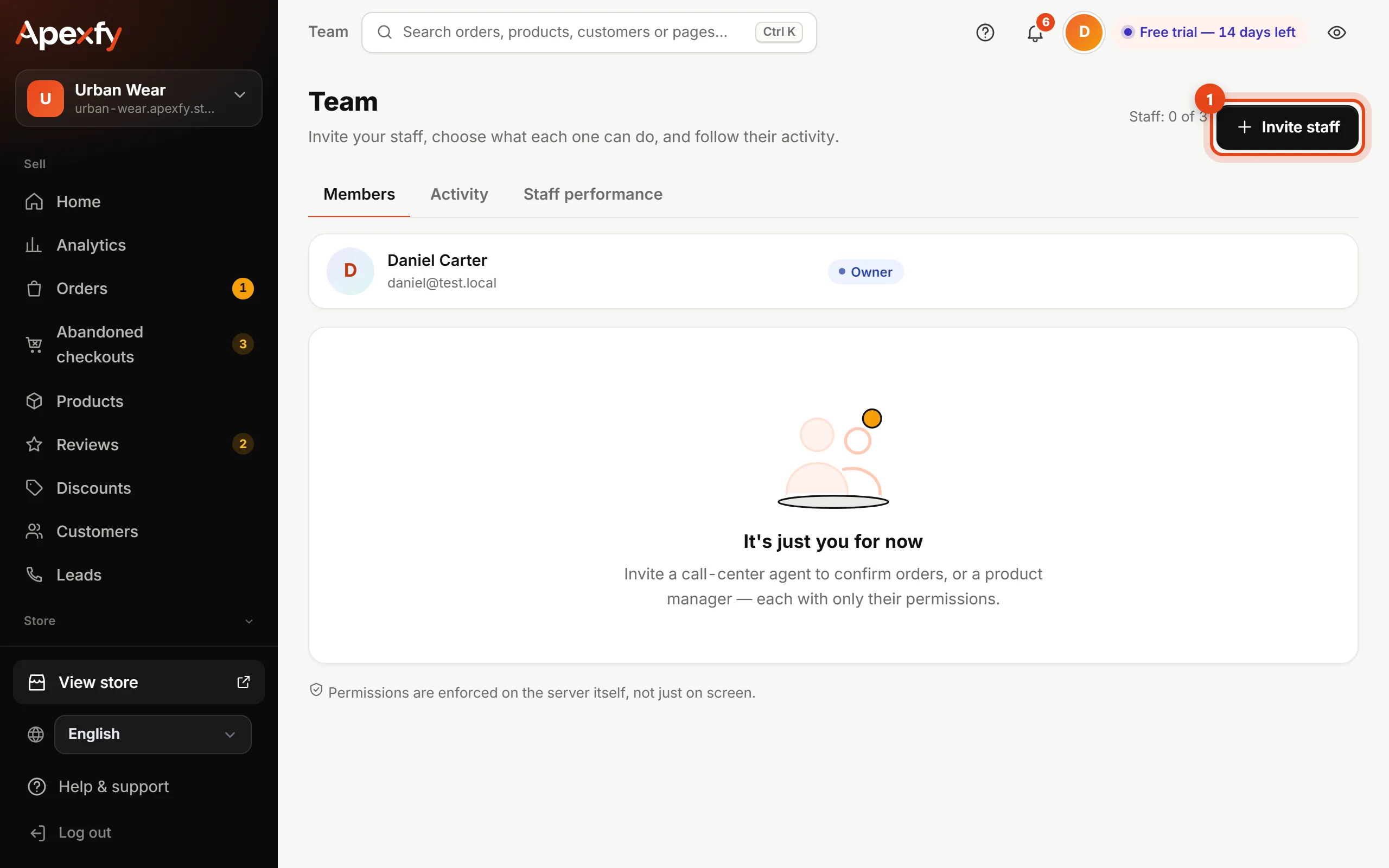
Inviting staff
- Click Invite staff and enter the staff email. They'll sign in (or sign up) with this email to accept.
- Pick a template — Call center, Product manager, Marketer or Manager — or choose the permissions yourself.
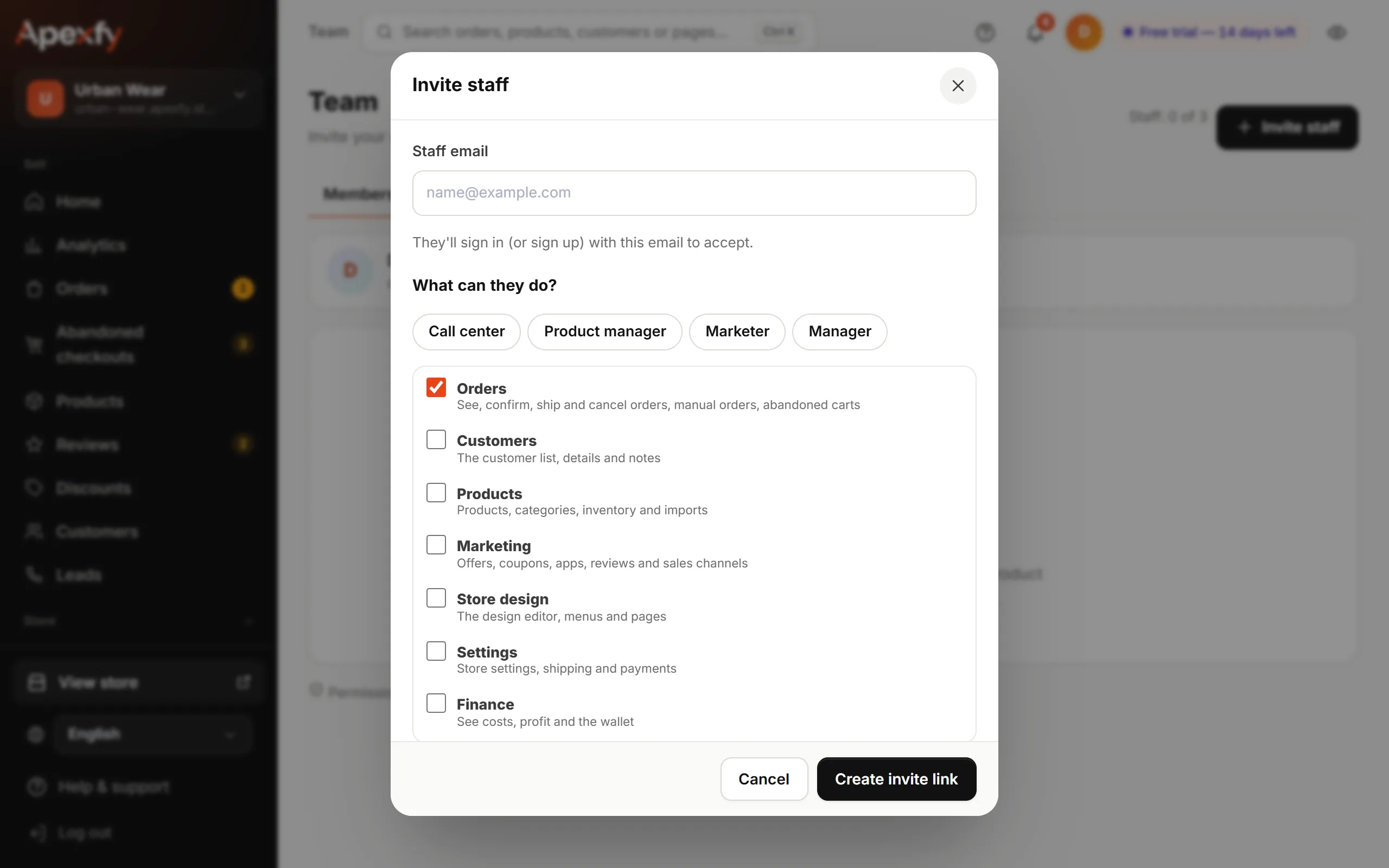
Permissions - Click Create invite link, then Send on WhatsApp or Copy link. The link works for 7 days and only once.
Permissions
| Permission | What it allows |
|---|---|
| Orders | See, confirm, ship and cancel orders, manual orders, abandoned carts |
| Customers | The customer list, details and notes |
| Products | Products, categories, inventory and imports |
| Marketing | Offers, coupons, apps, reviews and sales channels |
| Store design | The design editor, menus and pages |
| Settings | Store settings, shipping and payments |
| Finance | Costs, profit and the wallet |
A Call center member only sees and confirms orders — no costs, no profit.
Permissions are enforced on the server itself, not just hidden on screen. A staff member who opens a link to a page they're not allowed on won't see its data.
Activity and staff performance
- Activity: who changed a product, price, offer or setting, and who confirmed, canceled or shipped each order — and when.
- Staff performance: how many orders each person confirmed, canceled, shipped or delivered.
To change someone's permissions, open Members and click Permissions next to their name — or the bin icon to remove them.