
Move products and customers from Shopify, WooCommerce or Excel
Bring all your products — with variants and photos — and your customers in one go, without retyping. Safe to run again.
Open this page in your dashboardSteps
In the menu, open Apps & integrations → Move from Shopify.
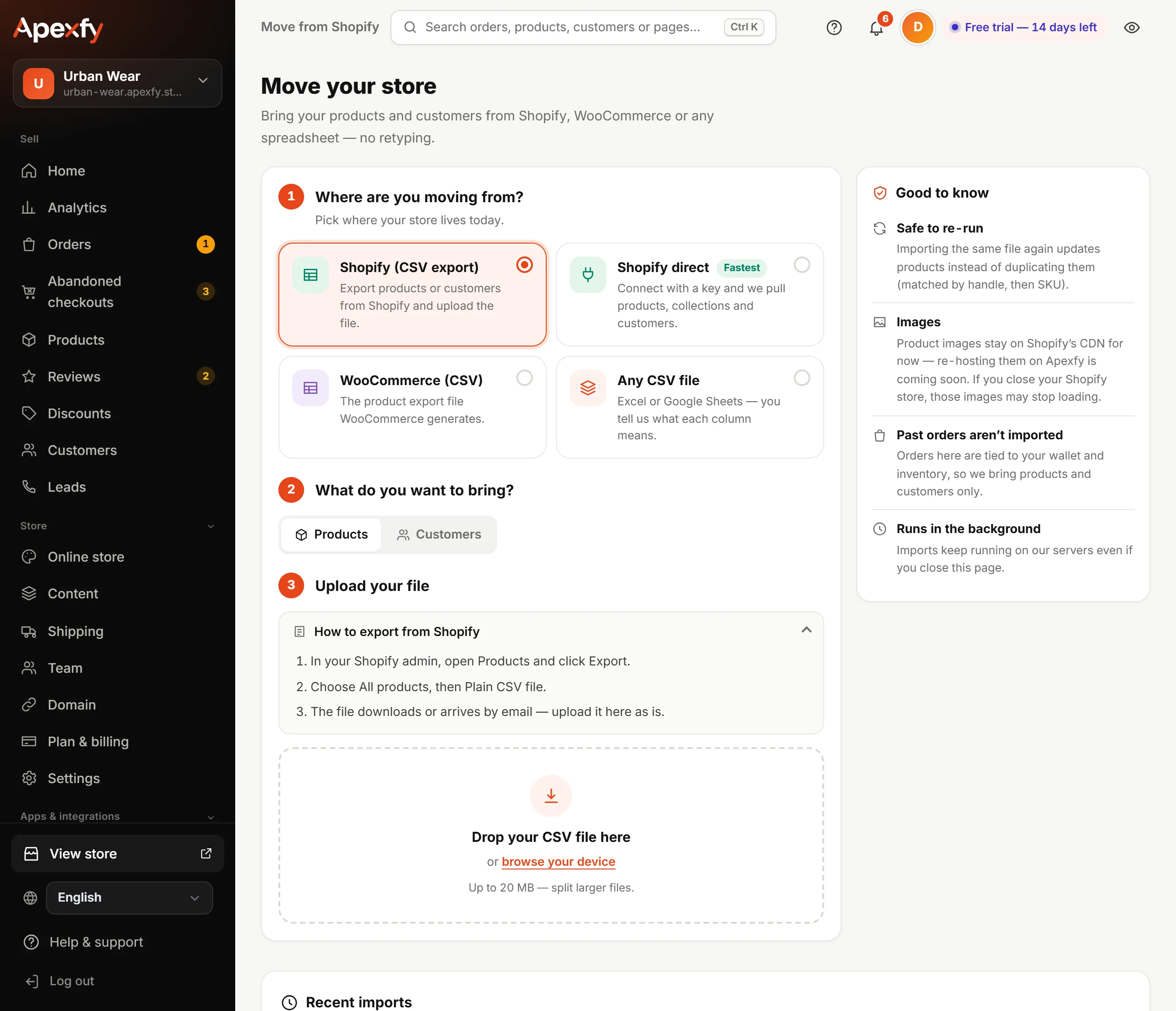
- Where are you moving from? Pick:
- Shopify (CSV export): export the file from Shopify and upload it here.
- Shopify direct (fastest): connect with a read-only key and we pull products, collections and customers.
- WooCommerce (CSV): the product export file WooCommerce generates.
- Any CSV file: from Excel or Google Sheets — you tell us what each column means.
- What do you want to bring? Products or Customers.
- Upload your file. The page shows how to export it from the platform you picked. Files can be up to 20 MB — split larger ones.
- With Any CSV file you'll see the first rows of your file and match each column to ours (title, price…). We guess what we can, so just check it.
“Shopify direct” with a key
The page walks you through it: in Shopify open Settings → Apps and sales channels → Develop apps, create an app with two read-only scopes, then copy its token (it starts with shpat_) and paste it with your store address ending in myshopify.com. The key is read-only and changes nothing in your Shopify store. Only the store owner can use this option.
Good to know
- Safe to re-run: importing the same file again updates products instead of duplicating them (matched by handle, then SKU).
- Images stay on Shopify's servers for now. If you close your Shopify store, they may stop loading.
- Past orders aren't imported: we bring products and customers only.
- Runs in the background: the import keeps going even if you close the page; see the result under Recent imports at the bottom.