
Design your store
Change the theme, colors, logo and home page sections, and see every change in the live preview before customers do.
Open this page in your dashboardOpen Online store. On the side is the list of your store's sections, and in the middle a live preview that updates with every change.
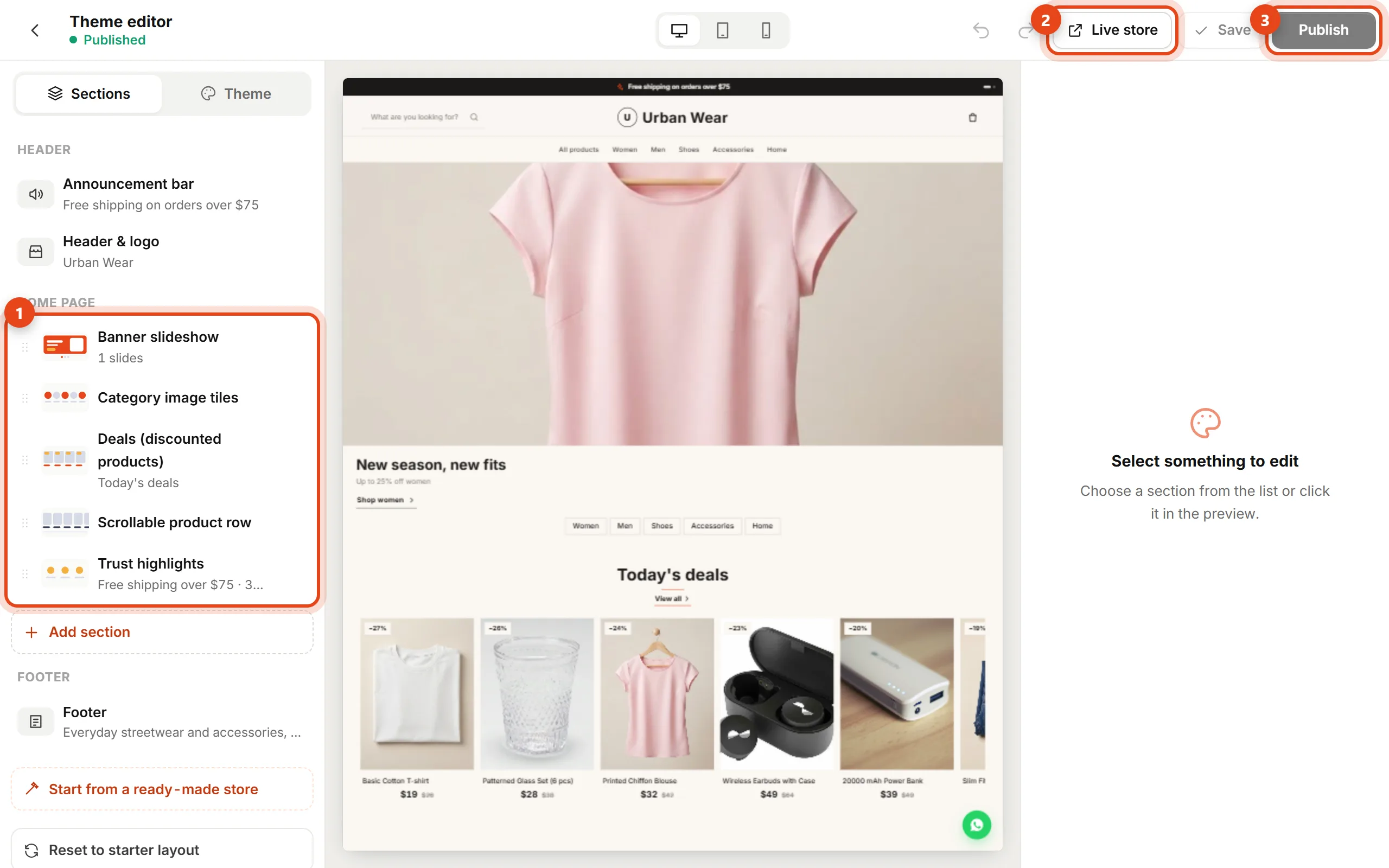
Sections
- Click any section in the list (or click it in the preview) to edit its text, images and products.
- Drag sections by the ⠿ handle to reorder them, or click Add section to pick a new one (banner slideshow, products, category tiles, FAQ…).
- Header & logo and the Announcement bar are at the top of the list, the Footer at the bottom.
Theme and colors
Open the Theme tab to pick a ready-made theme or a color set, or choose your primary, accent and background colors, fonts and button style.
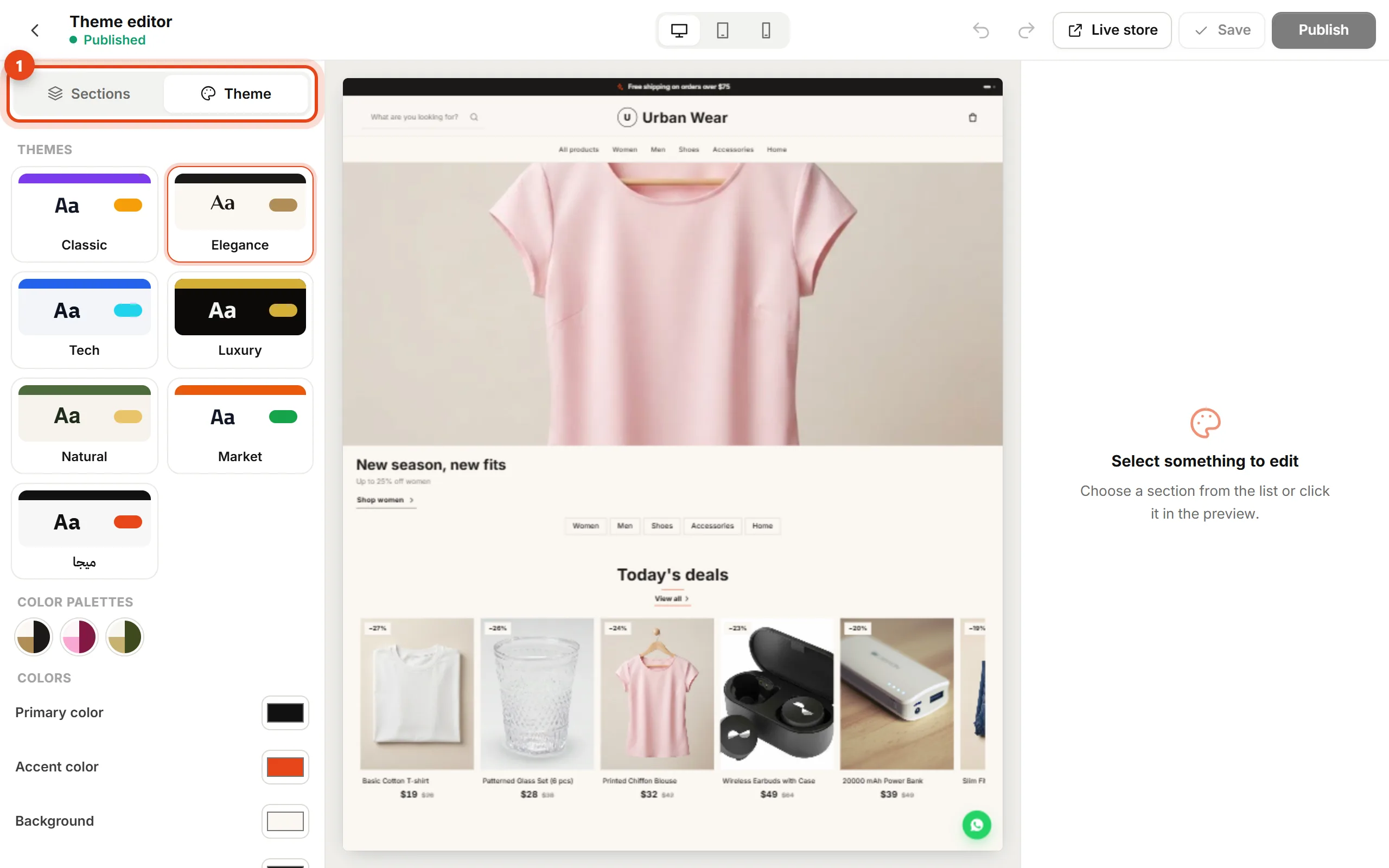
Saving and publishing
- Your changes are saved as a draft automatically — customers don't see them.
- Click Publish to put them live, and Live store to open your store as customers see it.
- Try the desktop, tablet and phone views above the preview, and undo any step with the undo button.
Most customers shop on their phones — check the phone preview before you publish.
Categories, menus and pages (About, FAQ…) are under Content.