
Confirm, ship and deliver orders
Move each order from “New” to “Delivered”, confirm with the customer by phone or WhatsApp, and act on dozens of orders at once.
Open this page in your dashboardEvery order goes through four steps: New → Confirmed → Shipped → Delivered (or Returned if the customer refuses it). With cash on delivery, confirming with the customer before shipping is the most important step: it cuts refused orders and saves you the shipping and return costs.
Steps
- Open Orders and click New to see only the orders waiting for confirmation.
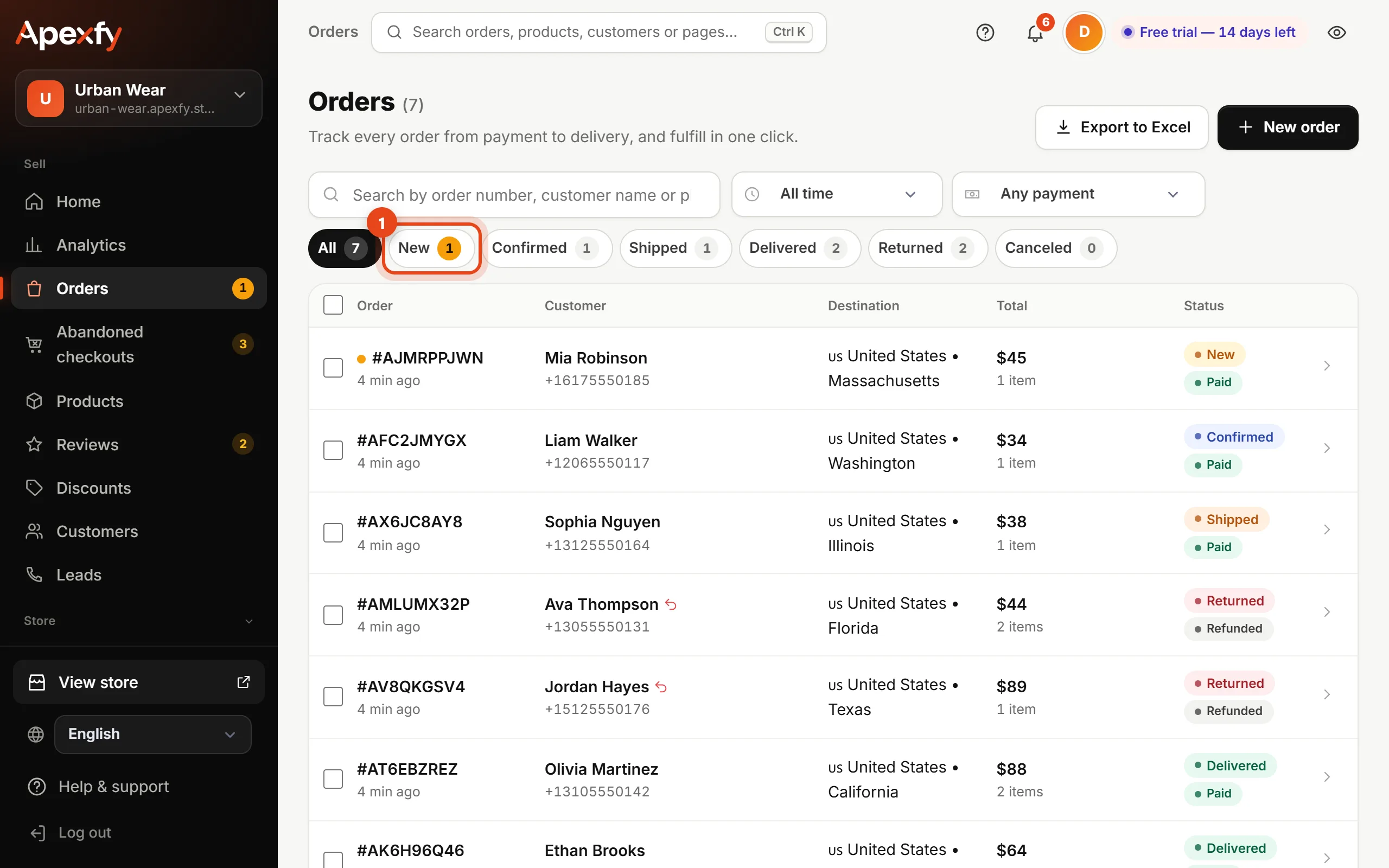
The “New” tab on the Orders page - Open the order. Call the customer or click Confirmation message to send a ready WhatsApp message with the order details, then click Confirm order.
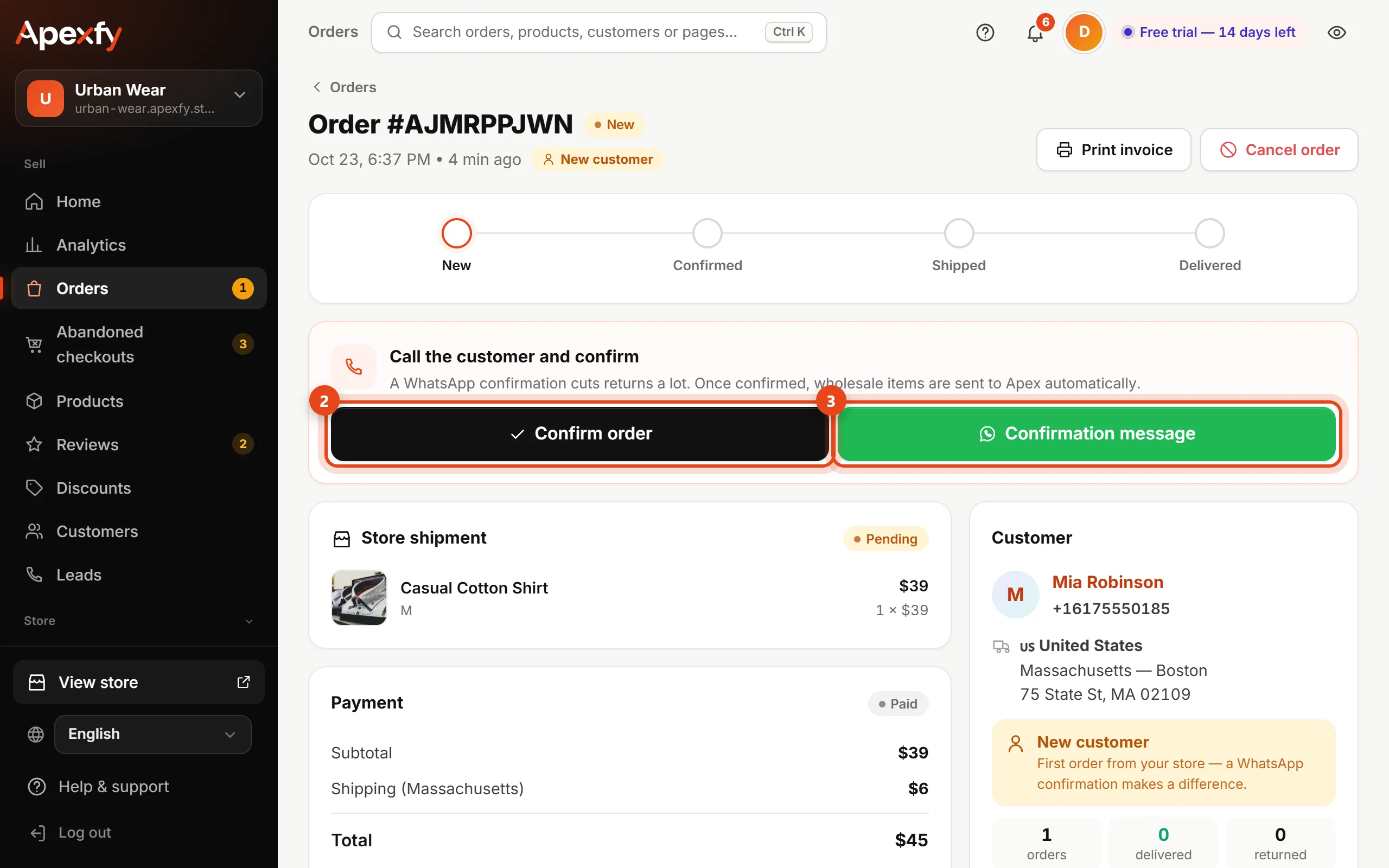
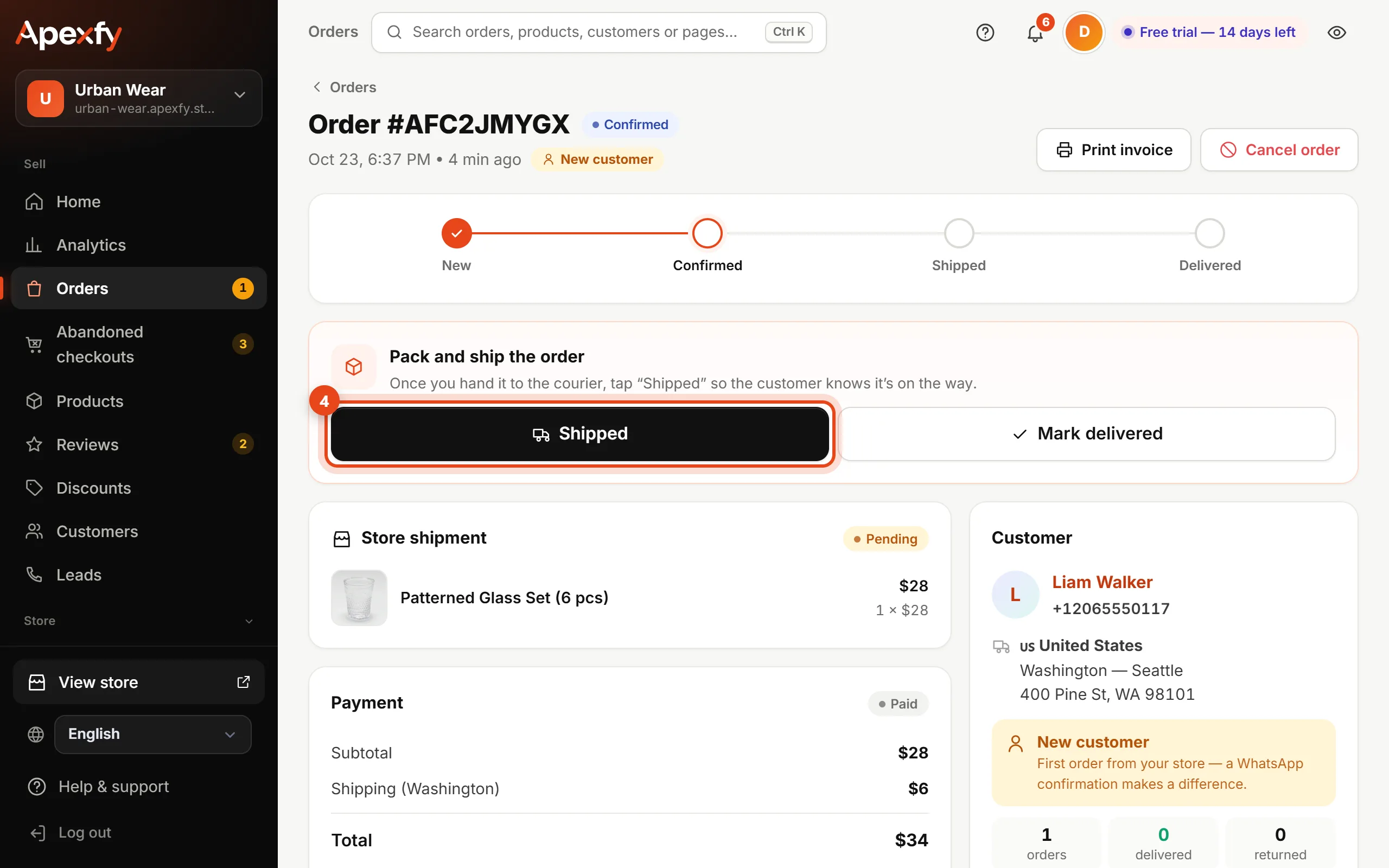
Confirm order and the WhatsApp message - When you hand the order to the courier, click Shipped and enter the carrier and tracking number (optional, but it powers your analytics).
The “Shipped” button - When it arrives, click Delivered. If the customer refuses it, click Returned.
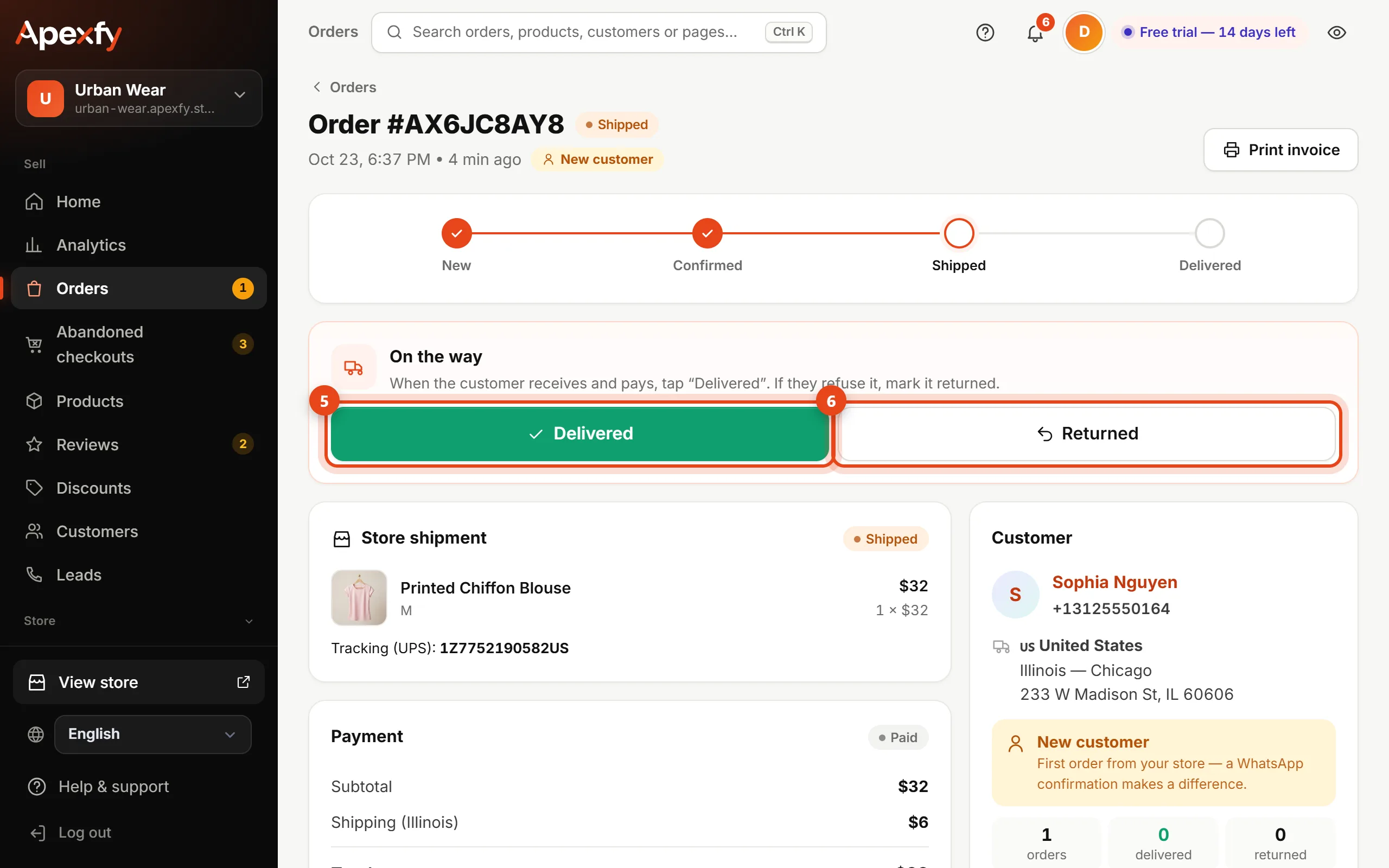
The “Delivered” and “Returned” buttons
A returned order is counted in “Real profit” with its shipping both ways, and a small ↺ arrow shows next to that customer on all their future orders so you can double-check before shipping.
Acting on many orders
Tick the orders (or the top box to select all) and a bar appears at the bottom with Confirm, Mark shipped, Mark delivered, Print, Export, Cancel.
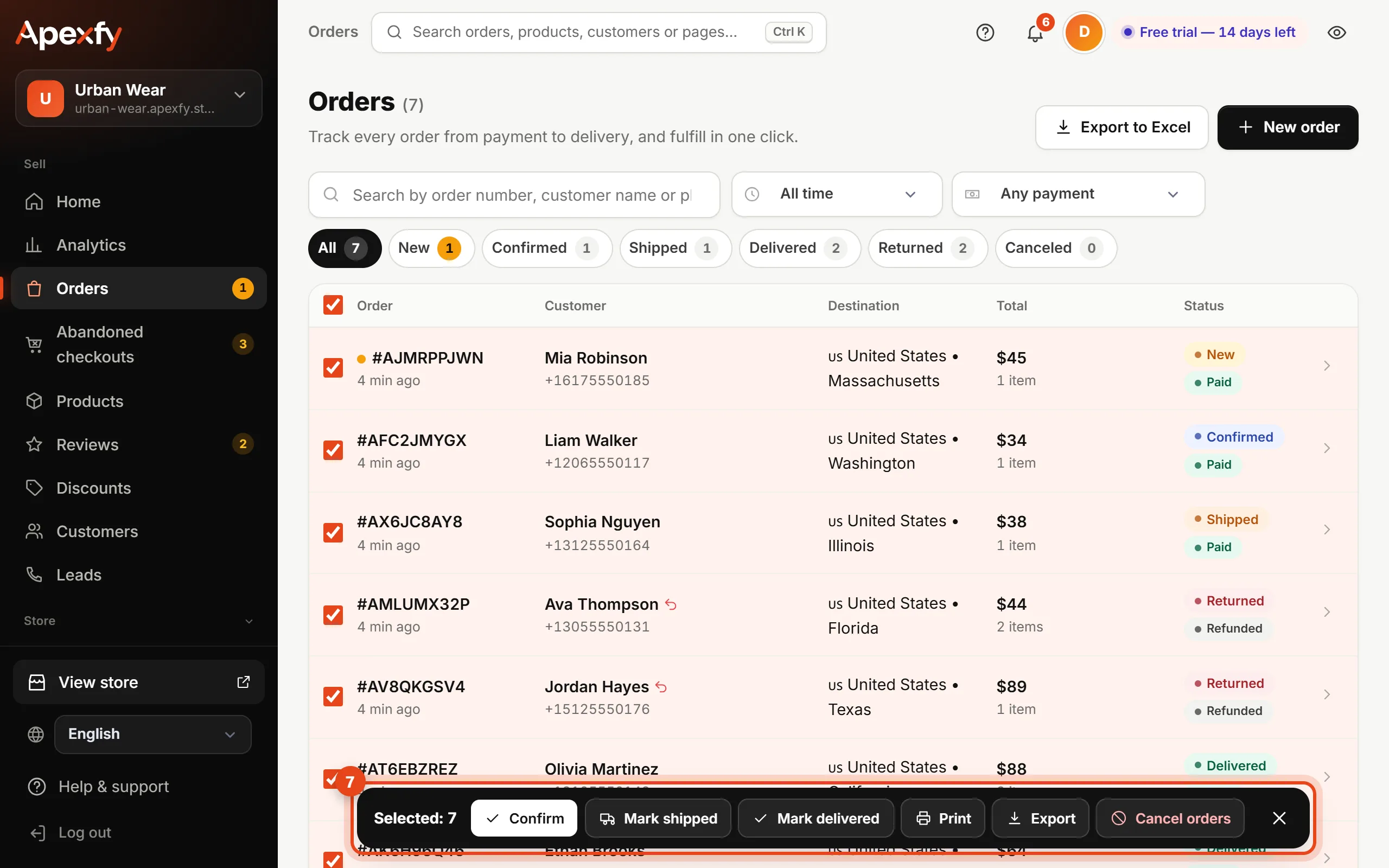
Search and filters
- Search by order number, customer name or phone.
- Pick a period (today, 7 days, 30 days…), payment method and country.
- Filters are kept in the link, so you can bookmark the page or share it with your team.
- Press Ctrl+K anywhere in the dashboard to find any order by number or by phone in any format.
Tips to raise your delivery rate
- Confirm the same day: customers you reach early accept delivery more often.
- Watch customers with past returns (the ↺ arrow); you can block their number from the customer page.
- Check delivery by region to see where you need stronger confirmation or a deposit.
- When a new order arrives while the dashboard is open you'll hear a sound and see the bell count — see notifications.